KaraokeMachine
A karaoke machine that behaves like a commercial home unit: pick a song by number, it plays, and the words highlight in time. It runs full-screen on a television, and any phone on the network is a remote: search the catalog, queue a song, change the key, skip.
A song is one of five things:
- a MIDI file with embedded karaoke lyrics;
- a video file;
- an MP3+G pair: an MP3 with a
.cdgof the same stem beside it; - an UltraStar song: the
.txta singing game times its words in, and the MP3 it names; - an LRC song: an
.lrcof timed lyrics, and the MP3 of the same name.
An MP3 on its own is not a song, because it has no words in it.
It runs on Windows, macOS and Linux, on Android and a Meta Quest, and on an iPhone and an iPad.
Start it, type a song number, and it plays. The screen shows the words, and a phone does everything else.
Getting started
- What it looks like
- What it does
- Installing
- On Debian, it is also an appliance
- On an iPhone or an iPad, you sign it yourself
- Removing it
Using it
These chapters need the machine’s screen, a phone, a browser or a double-click.
- The keyboard
- Getting songs in
- The remotes
- Running a public night
- Watching it in another room
- Setting it up from a browser
- The song book
For a technical reader
These chapters need a shell or a program of your own. They cover the flags, the song file formats,
the API, discovery on the network, and the tools that make a package.
BUILDING.md covers compiling.
- The command line
- Song files and their formats
- The HTTP API and the network
- Getting a corpus into shape
- Putting words on a MIDI file
About
What it looks like
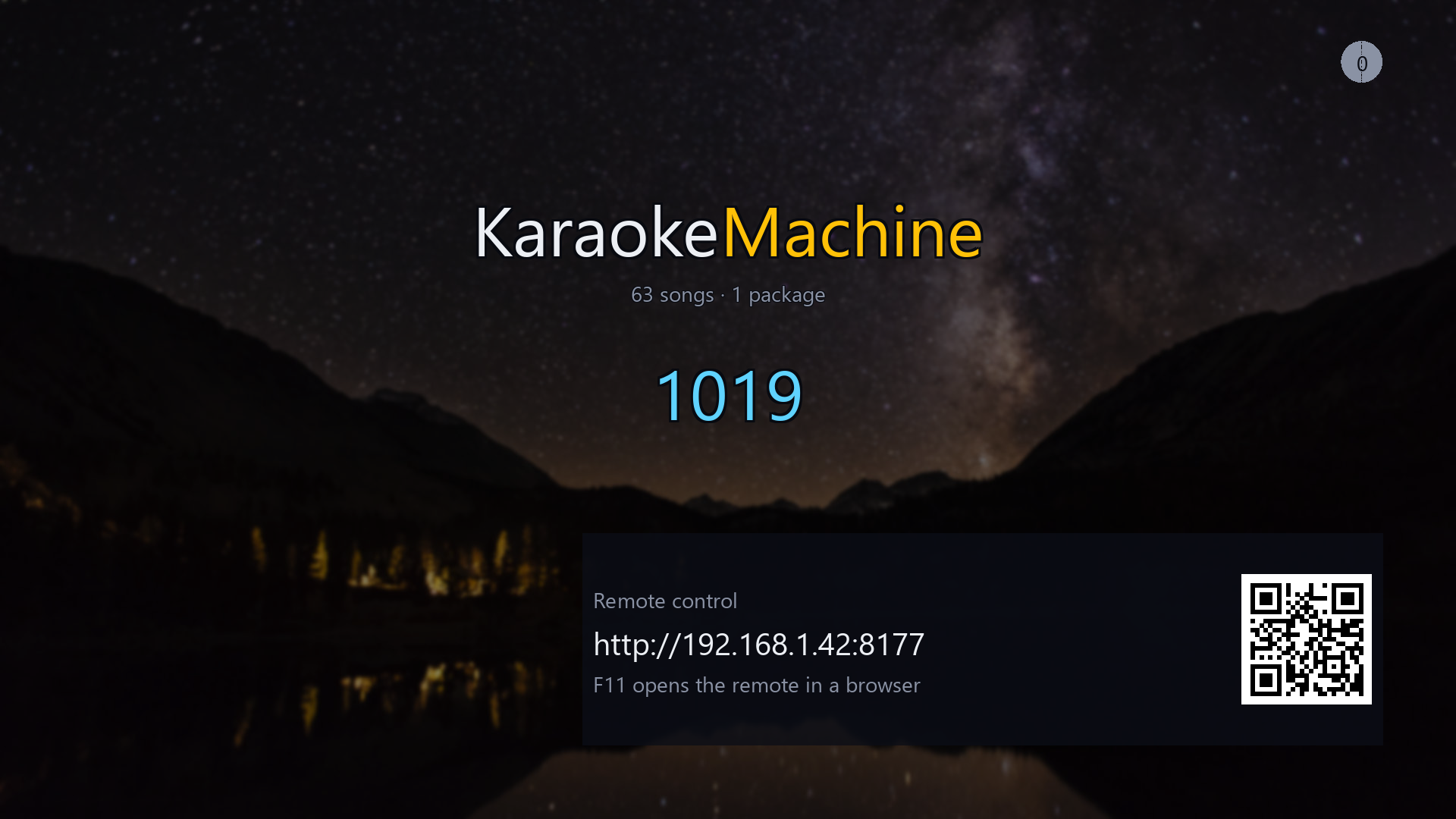 |
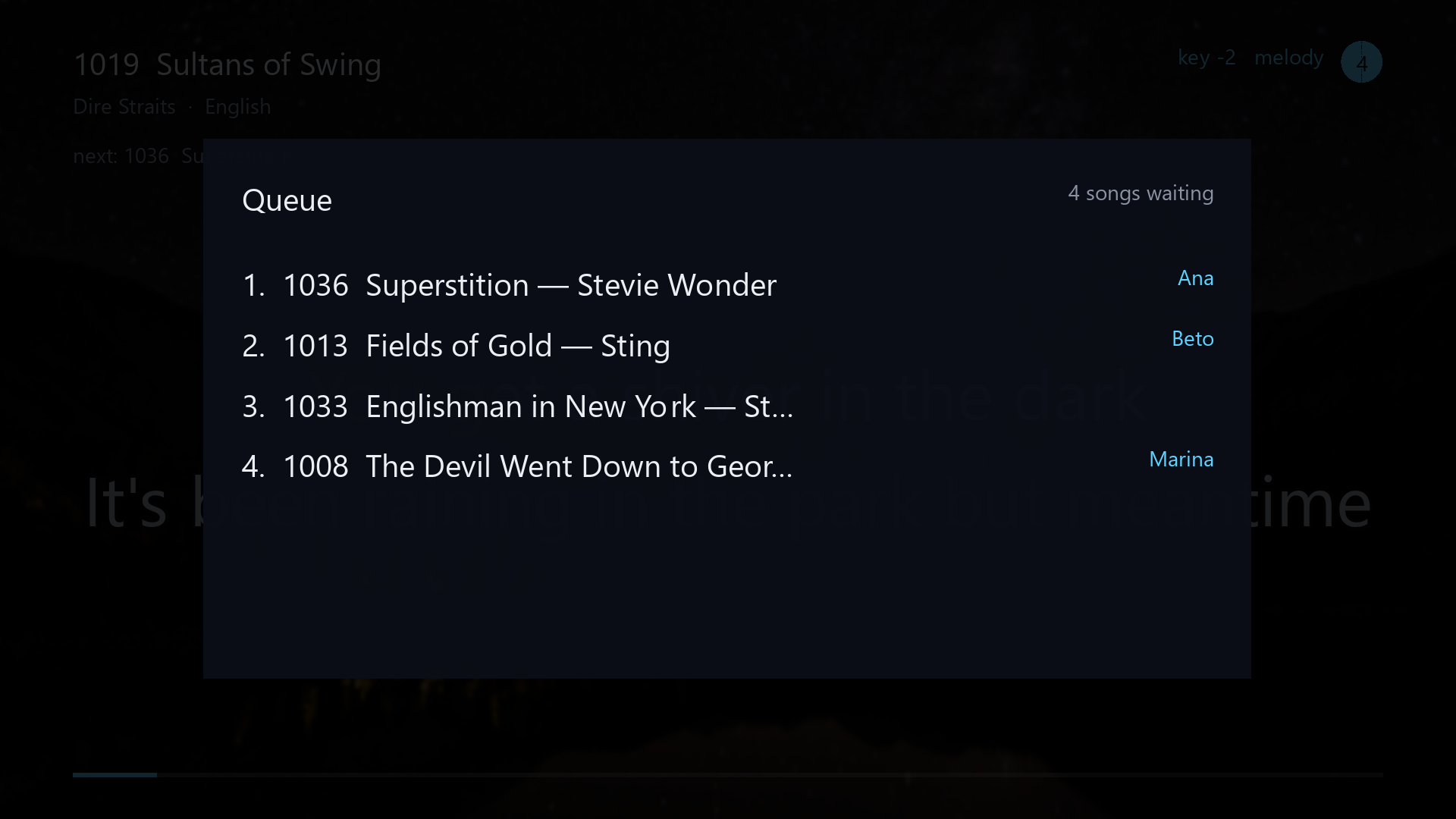 |
| Idle. Type a number, or point a phone at the code. | The queue. What is waiting, and who asked for it. |

Singing. Each syllable fills in time with the music, and the next line is already waiting.
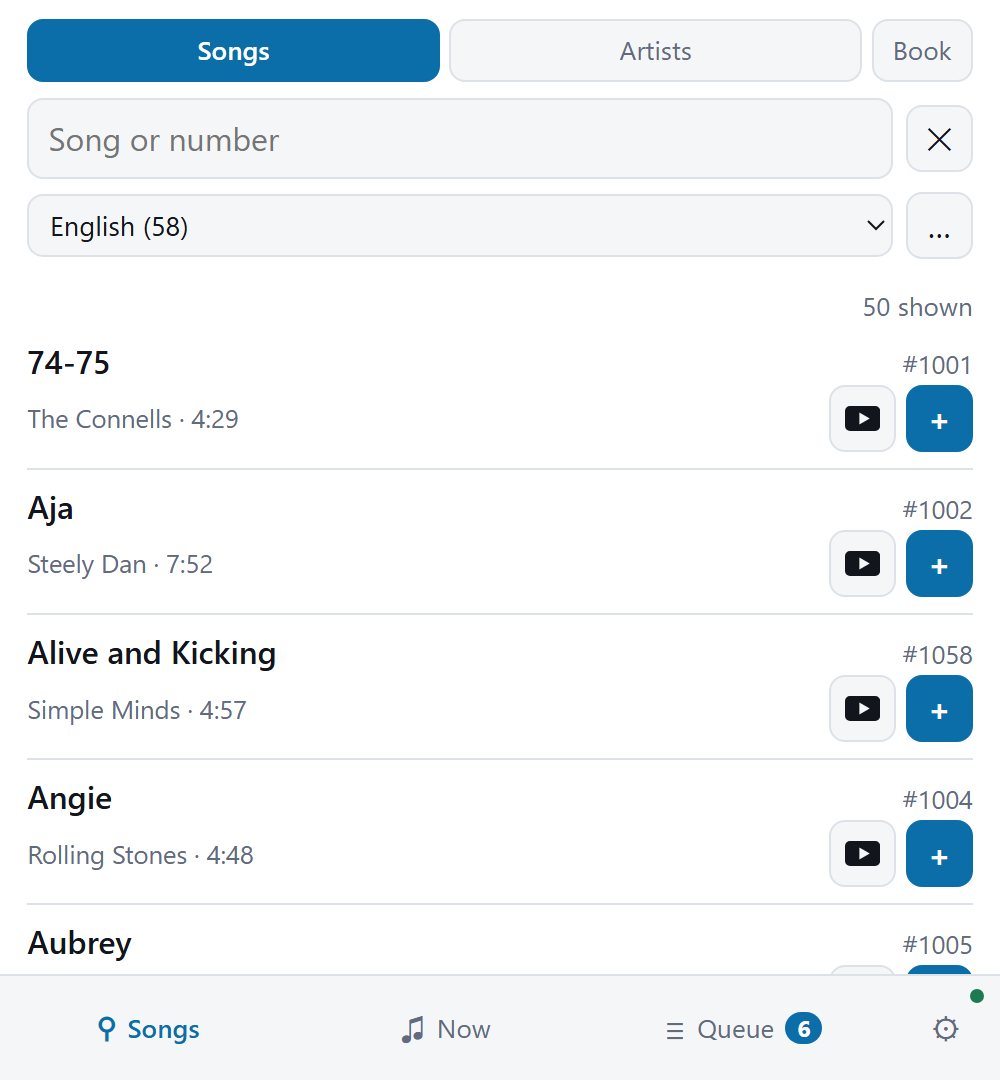 |
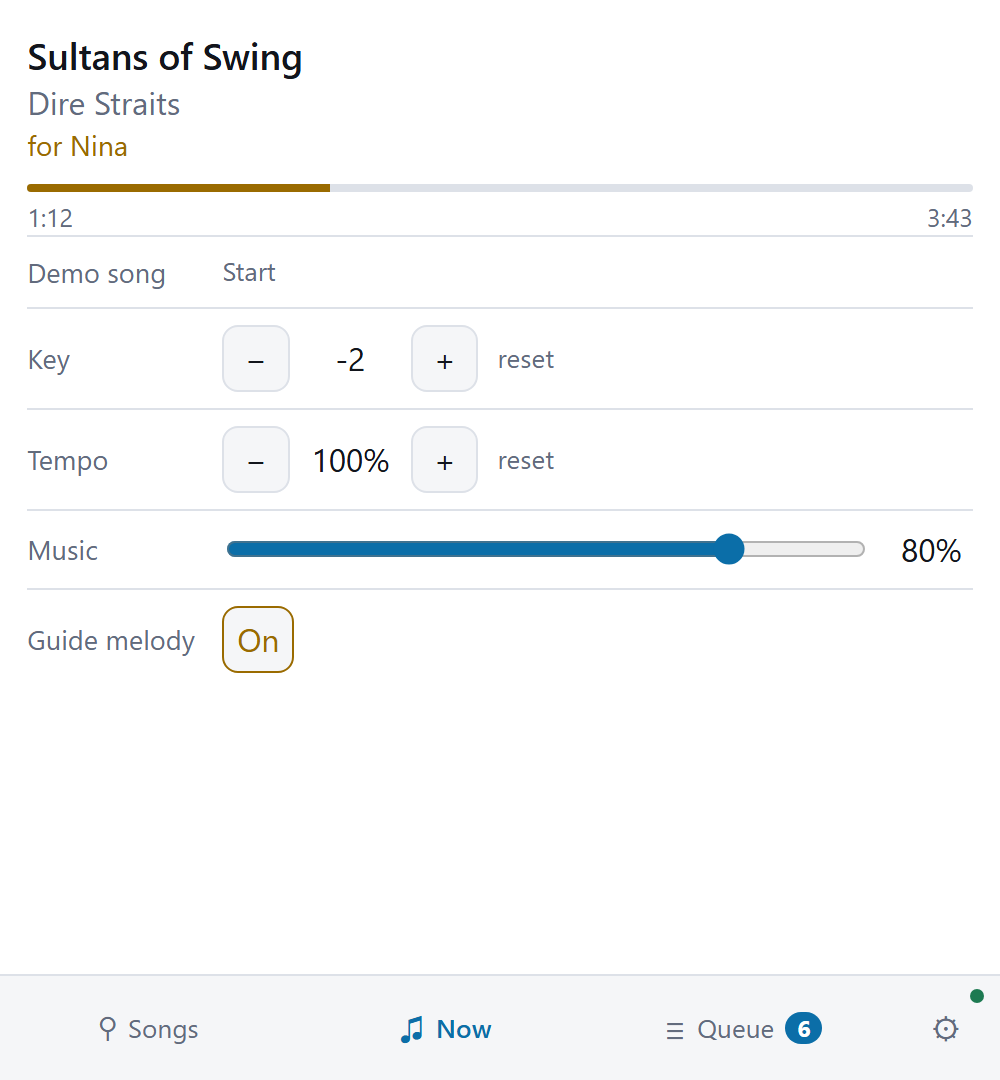 |
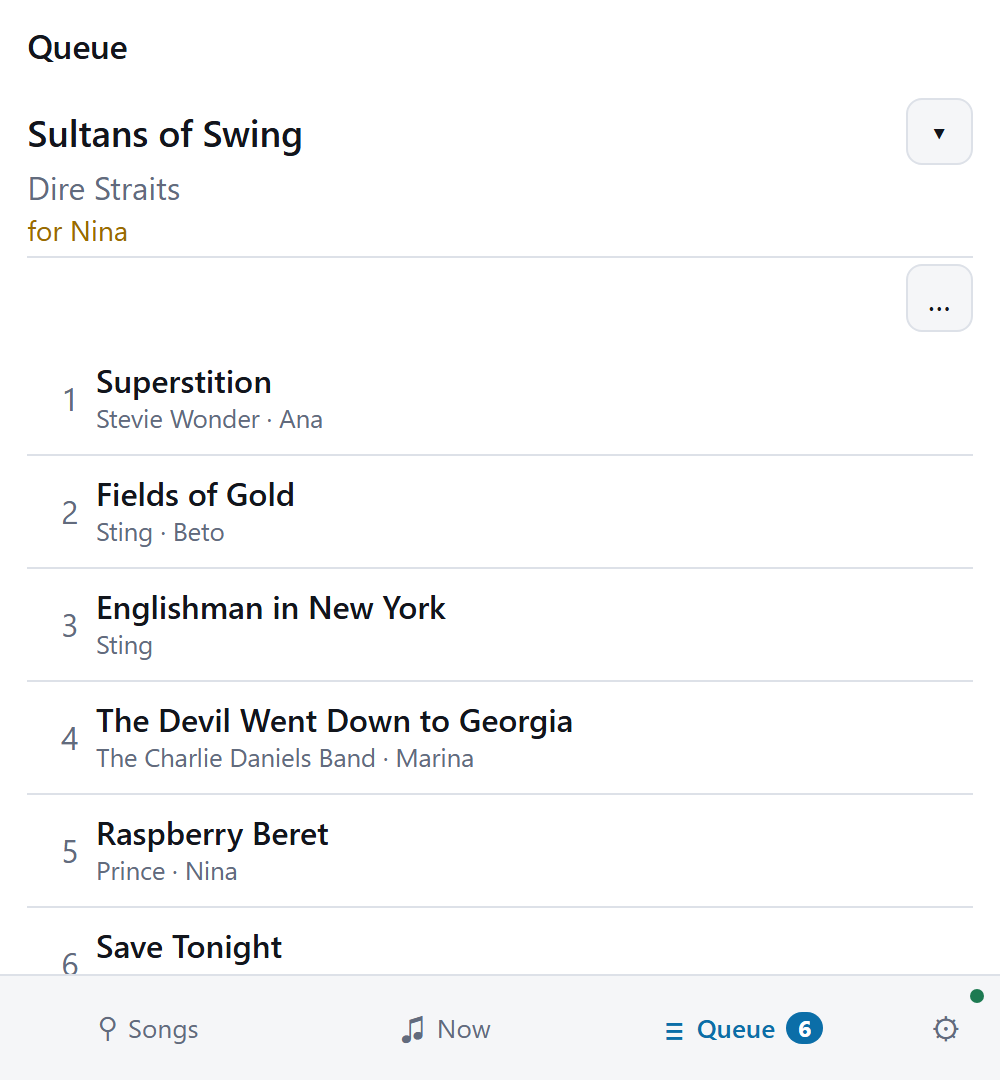 |
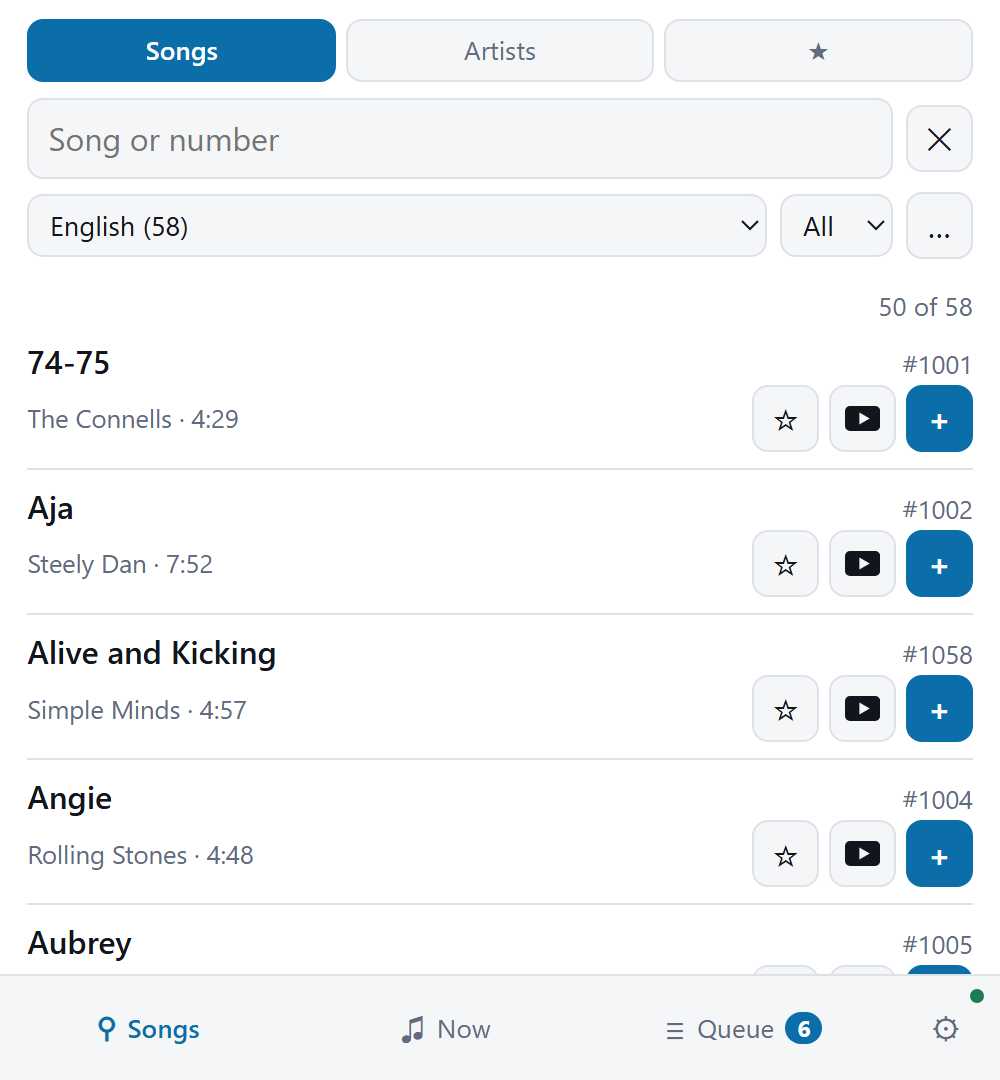 |
| Search and ask for a song from any phone. No app to install. | The song as it plays — key, tempo, guide melody, music volume. | Who is up next, and about when. Each singer has a colour of their own. | The offline remote adds favorites and an A–Z picker, and works with the machine switched off. |
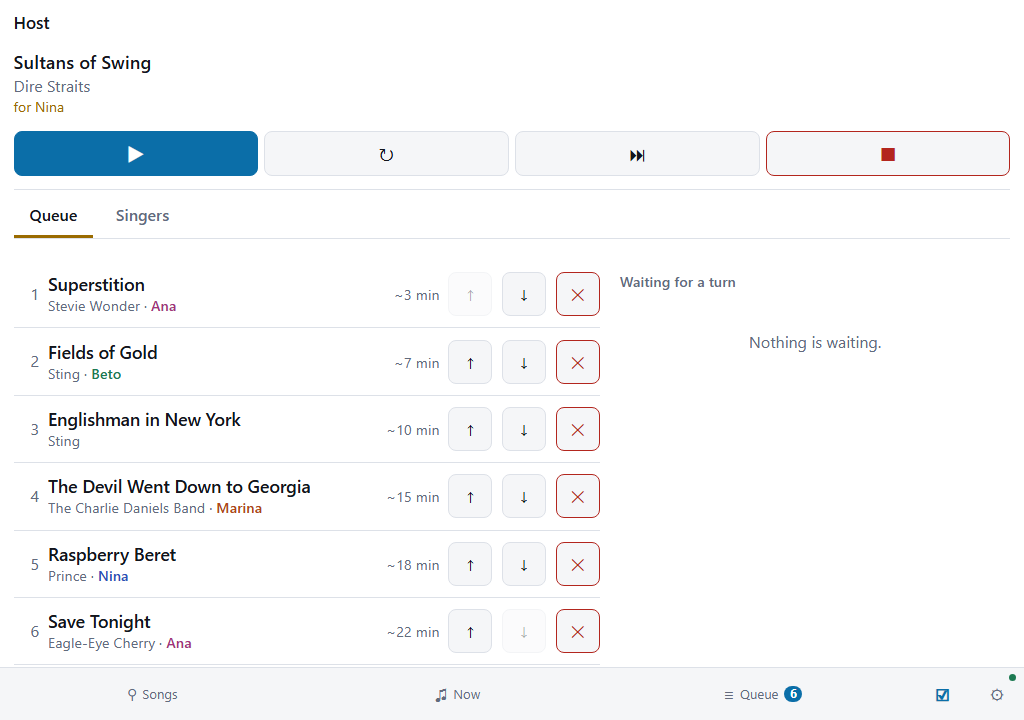
The host’s tab runs a public night from a tablet: the song that plays, the queue, and the songs waiting for a turn.
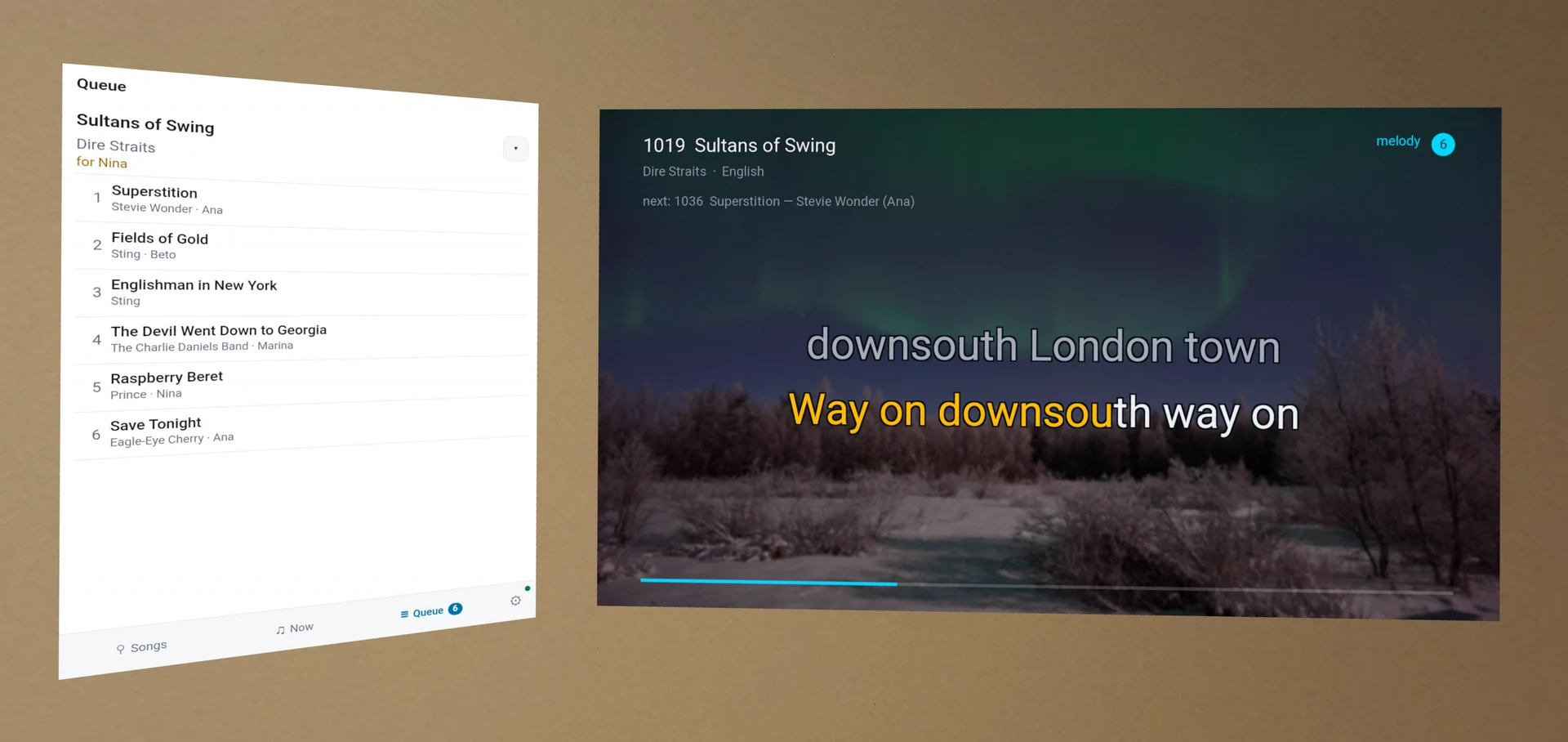
In a headset, the screen hangs on your wall and the queue hangs beside it.
What it does
Songs
- Songs arrive in packages (
.kmpkg). Each one carries its own queue numbers, titles, artists and analysis, and it goes in without a restart. - A language per song, so a catalog can say what Portuguese it has.
- A 0–10 suitability rating for every file, with a breakdown.
- The melody channel, where the machine can find it with confidence, and a stated reason where it cannot.
- The first line or two of each song’s words, so a person can recognize the song. The machine skips the studio-name banner that many karaoke files open with.
Playing
- Full-screen on a television, drawn by SDL3. On Linux it draws straight to DRM/KMS from a bare TTY, with no desktop installed.
- Or on a television in another room, as a stream a browser or a playlist player opens. See Watching it in another room.
- Words highlight in time, syllable by syllable, on the sequencer’s own clock.
- Transpose and tempo per song, a guide melody that can be muted, and per-song defaults. A video, an MP3+G song and a song with recorded audio change key and tempo too. That needs more processing, so it starts off on Android and iOS, and the Playback pane turns it on.
- A song ends when the rest of it is silent, and the next one starts. A quiet passage in the middle does not end a song. The Playback pane turns this off.
- A lyric timing offset in milliseconds, adjustable mid-song, for the picture lag of a television. It moves the highlight only and never the audio, because the microphones are in that audio.
- Wallpapers cycling with a crossfade, from a folder of stills or a zip of them.
- A queue with singer names, shown over whatever is playing. Each queued song shows about how long until it starts.
- An announcement before each queued song. For five seconds the whole screen shows the title, the artist and the singer’s name. A song with a long introduction plays under the card. The owner can change the length or turn it off.
- A demo mode, off by default: after a minute of quiet the machine plays songs by itself until somebody queues one.
Singing. Each syllable fills in time with the music, and the next line is already
waiting.
Remotes
- The machine serves a remote at its own address. Any phone on the network reaches it, with no app to install.
- A standalone offline remote keeps its own copy of a machine’s catalog, and works with the machine switched off.
- One admin password, which the machine shows on its own screen. Everything that reconfigures the machine needs it, and nothing a singer does needs it.
- Songs play in the order asked, or the singers take turns. A guest asks for as many songs as they like. Out of the box each one goes to the end of the queue. Choose turns, and the machine keeps one song for each singer in the queue. The next one goes in when theirs starts.
- Four levels below the owner: watch, ask, queue out of turn, and skip. Anybody in the room can ask for a song out of the box. You can lower that to watching only, or raise it. Three codes you choose raise one phone at a time. One queues out of turn and changes the key, one skips and plays now, and one opens the host’s tab.
- A host runs a public night. At a bar or a hall, guests ask from their own phones and a host corrects from a tablet. See Running a public night.
Giving the machine pictures and instruments
- KaraokeMachine Admin (
km-admin) finds photographs the lyrics stay readable over. It also offers General MIDI banks from a table of sixty-three. It sends either to the machine, and it sends a package, a bank or a photograph of your own. - The machine downloads none of these itself, because it may have no internet and should not hold
your accounts.
km-adminkeeps a copy of every download, to send to the machine later. - Pictures come from Openverse by default. Openverse needs no account, and its packs may travel on. Pixabay and Pexels need an API key of your own, and their terms forbid that.
Not supported, by decision
- No scoring of singers.
- No bare audio files, and no CD+G disc images — only the file pair.
- No video wallpapers: a video song is not a video background.
- No microphone processing in the app, because hardware mixes the microphones.
- No Thai, Arabic or Indic words on the screen, and no right-to-left, though the machine draws Japanese and Chinese.
Each of these is a decision with a reason. To propose a change, start with
docs/decisions/.
Installing
The downloads are on the release page, one
file per platform. The carol package is a separate download beside them. To build from source, see
BUILDING.md.
| Platform | What you get |
|---|---|
| Windows | A setup program, karaokemachine-setup-<version>-windows-x86_64.exe, with all nine products behind component checkboxes. It installs per-user into %LOCALAPPDATA%\Programs with no UAC prompt, and offers to add itself to PATH and to open .kmbuild files. Or a portable folder: unzip and run. |
| macOS | An installer package, karaokemachine-setup-<version>-macos-<arch>.pkg, with the same nine products. Applications go to /Applications, and command-line tools to /usr/local/karaokemachine with symlinks in /usr/local/bin. It asks for your administrator password once. Or Karaoke Machine.app on its own. |
| Windows or macOS, the remote alone | km-remote-setup-<version>-windows-x86_64.exe or km-remote-setup-<version>-macos-<arch>.pkg. It installs KM Remote only, for a computer that never plays a song. It can stay beside a full install. |
| Debian, Ubuntu | A .deb that names its ffmpeg and font dependencies. It installs a menu entry, an icon and the karaokemachine command, plus the appliance service, switched off. A second .deb, karaokemachine-tools, holds the two package builders, the offline remote and the picture-and-bank tool. Name both files in one apt install to get both. A Raspberry Pi takes the two _arm64.deb files, on Raspberry Pi OS based on Debian 13. They are not tested on a board. |
| Any Linux | A .tar.gz. Unpack it anywhere and run it, with no root and no package manager. It carries its own ffmpeg. A second one, karaokemachine-portable-<version>-linux-x86_64.tar.gz, is a portable copy: the machine and every tool, each keeping its settings and songs in the data folder inside. Both have an aarch64 file for 64-bit ARM. |
| Android, Google TV | An APK carrying both ABIs, for a phone and for a television. |
| Meta Quest | An APK of its own, which puts the machine on a screen hanging in the room with the room still behind it. The screen starts on your wall, and you move it and resize it by hand. The singer’s queue hangs beside it. A button switches to an ordinary system window and back, once the queue is empty. |
| iPhone, iPad | An .ipa for the machine and one for the remote, both unsigned. You sign them yourself with your own Apple ID. |
In a Meta Quest, the screen hangs on your wall and the queue hangs beside it.
Every install also has a second launcher, which starts the machine streaming. See Watching it in another room.
What each system asks
- Windows shows “Windows protected your PC” when you open a setup program, because the Windows downloads are not signed. Click More info, then Run anyway.
- macOS asks nothing. Both packages carry Apple’s signature and notarization, so a double-click opens Installer.
- Android asks you to allow installation from this source. The project’s own key signs both APKs, so each version installs over the one before it. A device that holds an APK signed with a different key must uninstall it first, and Android reports that as a refusal. Export the remote’s favorites from its share page before, and import them after.
- A Meta Quest lists the application under Unknown Sources and shows no name beside its icon.
That name comes from Meta’s store, and a sideloaded application has no entry there. Songs reach
the headset as they reach a phone: open a
.kmpkgfrom its Files application, or push one over a cable. - Debian and Ubuntu report that a
.debinstalled by path is unsigned. The tarballs are unsigned too. - An iPhone or an iPad installs no unsigned application. You sign both
.ipafiles yourself, and On an iPhone or an iPad has the steps.
On Debian, it is also an appliance — if you ask
An appliance is a box that does one thing. Plug it into a television, switch it on, and it is a
karaoke machine, with no desktop and nothing to log in to. The .deb can turn a Debian computer into
one.
Turn it on
The .deb includes a systemd service, switched off by default. Enable it, and the computer
starts the machine whenever the power returns.
sudo systemctl enable --now karaokemachine
sudo systemctl disable --now karaokemachine turns it off again.
Choose the right computer
Do it on a machine with no desktop, not on your laptop. The service takes over tty1, and it
draws from that bare virtual terminal. A login screen such as GDM, LightDM or SDDM holds the graphics
device, and the television stays black.
Where it keeps things
It runs as a system user, karaoke, so its songs, settings and catalog live under
/var/lib/karaoke.
| To | Use |
|---|---|
| Add a package | /var/lib/karaoke/.local/share/karaokemachine/packages |
| See whether it runs | sudo systemctl status karaokemachine |
| See what happened | sudo journalctl -t karaokemachine |
Ctrl+Q on the appliance switches the box off, as its power button does.
On an iPhone or an iPad, you sign it yourself
iOS installs an application only under a signature, and Apple issues none that a stranger can give
you. So both .ipa files say unsigned in the name, and you do the last step. It takes about five
minutes and a computer, once per app.
You need an Apple ID, and the one on the phone is fine. You also need a free signing tool: Sideloadly on macOS or Windows, or AltStore.
- Download
karaokemachine-<version>-ios-unsigned.ipa, orkm-remote-<version>-ios-unsigned.ipafor the remote alone. - Connect the phone or the iPad to the computer and unlock it.
- Open Sideloadly, drag the
.ipaonto it, enter your Apple ID and press Start. It signs the app for your devices and installs it. - On the device, open Settings → General → VPN & Device Management, tap your Apple ID under Developer App, and tap Trust. The app does not open until you do.
- Start it once with the network available. iOS verifies the certificate on that first run.
Four limits come from Apple rather than from the application:
- A free Apple ID signs for seven days. After that the app does not open until you repeat step 3. Your songs, settings and catalog stay on the device. A paid developer account signs for a year, and AltStore renews in the background.
- A free Apple ID signs three applications at a time. The machine and the remote are two of them.
- The machine does not announce itself on the network, because Apple grants the multicast entitlement only after review. The iOS remote finds it anyway. The Android remote and a browser need the address from the idle screen.
- An idle machine stops answering in the background, because iOS suspends an app that plays no audio. A song that plays keeps playing with the screen off.
Most people want the remote. It is small, the last two limits do not apply to it, and it is what a guest holds.
Removing it
Your songs, settings and catalog stay where they are, and the uninstaller names their folders.
- Windows: uninstall as you do anything else. The remote alone is its own entry, KM Remote.
- macOS: open
/usr/local/karaokemachineand double-click Uninstall KaraokeMachine. It lists what it removes, asks, and then asks for your password. From a terminal, runsudo /usr/local/karaokemachine/uninstall.sh, with--dry-runfor the list alone. The remote alone has/usr/local/km-remoteand Uninstall KM Remote. - Debian:
sudo apt remove karaokemachine, which stops and disables the appliance service first./var/lib/karaokestays even on apurge, andsudo userdel -r karaokeremoves it. - Any Linux: delete the folder. If you ran its
install.shfor a menu entry,./install.sh --uninstallremoves that entry.
Removing the machine leaves the remote alone, and removing the remote leaves the machine alone.
The keyboard
A keyboard plugged into the machine does everything a singer needs: pick a song by number, and control the song that plays. A phone does the same from the sofa. See The remotes.
Mid-song, a key press shows a strip of buttons along the bottom. Each button names its function key. The function keys work without the strip, and each has a letter key that does the same. A television or a phone shows the same buttons without the key hints.
Choosing a song
Type the song’s number and press Enter. The number comes from the remote’s search or from
the song book.
| Key | What it does |
|---|---|
0–9 | Type a song number, on the number row or the keypad |
Enter | Queue the song number |
Backspace | Correct the song number |
Delete | Clear the song number |
↑ ↓ ← → | Move around the on-screen number pad, where one is drawn |
|
|
A song number, part typed. Enter queues it, and I shows
the address and QR code. |
The queue, which F6 or Q shows over the song. |
During a song
| Key | Letter key | What it does |
|---|---|---|
F1 | Space | Pause and resume |
F2 | , | Go back ten seconds |
F3 | . | Go forward ten seconds |
F4 | N | Skip to the next song |
F5 | R | Start the song again |
F6 | Q | Show the queue |
F7 | - | Lower the key |
F8 | + | Raise the key |
F9 | M | Turn the guide melody on and off, for a song that has one |
K | Put the song back in its own key |
The screen and the window
| Key | What it does |
|---|---|
W | Show the next wallpaper |
I | Show the address and QR code |
F | Fill the screen |
T | Keep the window in front of everything else |
C | Show or hide the mouse pointer |
Esc | Leave full screen. In a window, stop the machine |
Back, on a TV remote or a phone | Go back one step, and leave the machine from the first screen |
F12 | Show how the picture is doing |
Ctrl+F12 | Stop the strip of buttons timing out |
T is for a machine that shares a screen with other windows. The machine remembers the setting.
Some Linux desktops do not let an application place itself, and there the key does nothing.
C shows or hides the mouse pointer. A window shows it and full screen hides it to begin with,
and C changes only the one you are in. The pointer comes back while the Menu is up. The machine
remembers both.
F12 shows frames a second, the time each frame took, and any sound or video that ran short. It
writes nothing to the log. The machine forgets F12 and Ctrl+F12 when it closes.
The machine itself
| Key | What it does |
|---|---|
D | Turn demo mode on and off |
F10 | Open the packages folder |
Ctrl+F10 | Read the packages folder again |
F11, or Ctrl+F11 on a Mac | Open the remote in this computer’s browser |
Ctrl+Q | Stop the machine |
Ctrl+1–Ctrl+9 | Change to another SoundFont bank that debug.soundfonts names, to compare them |
A machine that kept its evening through a restart waits for one of two keys. The screen says so, and it plays nothing until then.
| Key | Letter key | What it does |
|---|---|---|
F1 | Space | Go on with the evening, from the first song in the queue |
F4, twice | N, twice | Start a new evening, with an empty queue and no singers |
The second press must follow within eight seconds. Any other key keeps the evening. Running a public night has the setting.
D starts a song at once and then plays songs by itself. If a song plays or waits in the
queue, demo mode takes over when the queue is empty. Turning it off lets the current song finish. It
lasts until the machine closes, and the /admin/ page makes it permanent. With it on, N on a quiet
machine starts the next song.
Ctrl+F10 lets a package you just copied in play without a restart.
F11 opens the page a phone gets. macOS keeps F11 for itself, and the panel names the key
that works on this computer.
Ctrl+Q closes the application. On the Linux appliance it switches the box off, as its power
button does.
Getting songs in
The machine starts with no songs, because you supply your own. Songs arrive in packages. A
package is one .kmpkg file that carries its songs with their queue numbers, titles, artists and
analysis. Videos and MP3+G pairs travel inside it.
To try the machine first, download the carol package from the release page. To make a package from a folder of your own files, see Getting a corpus into shape.
Install a package
Pick whichever of these is nearest to hand. Each one puts the file into the packages folder, so the songs survive a restart.
- Double-click the package. The machine installs it and says so.
- Drag the file onto the machine’s window. It shows
installing …, then how many songs went in. - Copy the file into the packages folder yourself.
F10opens the folder, andCtrl+F10reads it again, so the songs play without a restart. - On Windows and macOS, move the mouse over the window and press Menu, then Install a package. The file browser opens, and the machine installs the packages you choose. A song that is playing goes on playing. The owner can turn the Menu off on the General pane of the setup page.
- On an Android phone or tablet, press Menu, then Install packages. The file browser opens, and the machine installs the packages you choose. A song that is playing pauses while the browser is open.
- On an iPhone or iPad, press Menu, then Install packages. The Files browser opens, and the machine installs the packages you choose. A song that is playing goes on playing.
- Add it from a browser, on the Songs tab of the setup page.
- Send it through the API.
The Menu’s file browser lets you choose several packages at once. The machine installs them one at a time, and says what happened to each.
The double-click needs the machine registered for .kmpkg files. The Windows installer offers to do
that, and macOS does it when it installs the app. On Linux and for the portable Windows folder, run
karaokemachine --register once. Neither needs administrator rights.
A rebuilt package of the same name replaces the old one.
Remove a package
The packages folder says which packages are installed. Take a package out of the folder, and the
machine uninstalls it at the next start or the next Ctrl+F10. Removing a package on the Songs
tab deletes its .kmpkg.
Linked packages
A linked package holds no song. It names each song file by a path, and the machine plays the files from one folder on its own disk. It suits a library that already sits in a folder: a normal package would hold a second copy of every file. The package lists of the machine mark it linked.
The machine takes none until you allow it. A linked package makes the machine read files from
its disk, at paths that whoever built the package wrote. Allow it for packages you built, or from
somebody you trust. Two things turn it on, and both are on the Linked packages card, on the
Songs tab of the setup page and of km-admin:
- Set the folder. Type the full path of the folder on the machine, such as
<your karaoke folder>, and press Save the folder. The card says when that folder is not there. - Tick the box, and press Save.
settings.json holds both, as "linked_packages": { "enabled": true, "dir": "<your karaoke folder>" }.
karaokemachine --show-paths says where that file is.
Each linked package plays from one folder of its own, inside that folder. The package names
it, and the Songs tab shows it under the package. A package built from cdg/alpha in your
library needs cdg/alpha inside the folder you set, with the same files in it. The machine reads
nothing outside the package’s folder. A package whose folder is missing does not install, and the
Problems tab names the folder.
A package whose songs share no folder plays from anywhere in the folder you set. The Songs tab says so. Install such a package from somebody else only if you trust them with that folder.
Install a linked package the way you install any other. A package the machine refuses is listed on the Problems tab, with the reason.
- A song whose file is missing does not play, and the machine goes to the next song.
- Removing a linked package deletes the package file. Your song files stay where they are.
- Unticking the box removes the songs of every linked package, once nothing is playing.
The carol package
One package is available to download: sixteen Christmas carols. Every one is public domain.
CREDITS.md beside the pack names every source.
No install carries it, and no other songs come with the machine. A karaoke MIDI is rarely free to distribute, because the tune, the arrangement and the words each have an owner.
How songs are numbered
A singer picks a song by its number, so the numbers matter once you print a list.
A package holds at most 999 songs, and the machine holds up to a thousand packages. The limit is there to encourage a curated volume.
Each package sits in a block of a thousand numbers, called its bank. A song’s number is
bank × 1000 + slot, where the slot is the number the package gave the song. Two packages that both
number a song 500 therefore do not clash: one is 3500, the other 611500.
A package’s bank comes from its id, so its numbers are the same on every machine. A printed song list therefore travels with the file. If another package already holds that bank, the package takes the next one.
Give a package shorter numbers
Put the volume you sing from most into a low block, and its songs take four digits instead of six.
Choose any block from 1 to 9999, because bank 0 belongs to the machine. The Songs tab at
http://127.0.0.1:8177/admin/ has a box for it.
Do it once, when the package goes in. A change renumbers every song in that package, so a printed list becomes wrong. The machine refuses the change while a song of the package plays or waits in the queue.
The remotes
A phone is the machine’s remote. A singer searches the catalog on it, queues a song, and sees what plays. The machine has two remotes: a page it serves itself, and a separate program that works with the machine switched off.
The remote the machine serves
The machine serves a remote at its own address, and any phone on the network opens it. Nobody installs an app.
To open it, point a phone’s camera at the QR code on the idle screen. The screen also shows the
address, so nobody types an IP address. Mid-song, I shows the address and the code. F11 opens the
same page in the browser of the computer the machine runs on. See The keyboard. On
Windows and macOS, move the mouse over the machine’s window and press Menu, then
Choose songs, for the same page.
The idle screen. Point a phone at the code, and the remote opens.
The remote has a page for each thing a singer does: find a song, follow the song that plays, and see who is next.
|
|
|
| Search and ask for a song from any phone. No app to install. | The song as it plays, with its key, tempo, guide melody and music volume. | Who is up next, and about when. Each singer has a colour of their own. |
Each queued song shows about how long until it starts. The Queue tab says ~4 min or < 1 min
beside each song, and the figure counts down as the playing song runs. The
queue on the machine’s screen shows the same figure.
Tap + on as many songs as you like. Out of the box each song goes to the end of the queue. The Queue tab lists Your songs, and says of each whether it is waiting, in the queue, or playing now. A song leaves the list when it ends. Tap ✕ beside one to take it back.
Where the owner chooses turns, the machine keeps one song for each singer in the queue. Your next song goes in when yours starts. Below the queue, Waiting for a turn lists every singer’s waiting songs. Tap it to open the list.
Your name is optional. Type it in Singing as on the Setup tab, and the queue shows it. Once it is saved, the box folds away, and Change opens it again. Two singers cannot hold one name on the same evening. A phone that several people share adds each of them under Add another singer on this phone, and then chooses who is singing. Who is singing stands on the Setup tab and above the list on the Songs tab.
A song somebody already has brings a question. Tap + on a song that is in the queue, or that somebody sang tonight, and the row says so. Tap Ask anyway to ask for it, or ✕ to leave it.
A phone with the host’s code has a host’s tab. It is the ticked box in the tab bar. A host uses it to run a night:
| The host wants to | On the host’s tab |
|---|---|
| Add a song for a guest with no phone | Type the guest’s name, search the song, and tap + |
| Add a song found on the Songs tab | Tap 👤 on the song, choose the singer, and tap + |
| Put a waiting song into the queue early | Tap ↑ for next, or + for the end of the queue |
| Refuse a waiting song | Tap ✕ beside it |
| Move a singer to another phone | Open the singer and tap Hand to a phone. The guest then types that name on the new phone |
| Join two names that are one person | Open one singer, choose the other, and tap Merge into |
| Take out a singer who went home | Open the singer and tap Remove |
| Stop taking songs near the end | Tap Stop taking requests. Songs already waiting still play |
| Clear everything for another night | Open Start a new evening and tap Empty everything |
| Go on after a restart, where the machine kept the night | Tap Continue this evening at the top |
| Clear a night that the machine kept | Tap Start a new evening at the top |
A bar or a hall runs a night the same way. Running a public night has the settings for one.
The owner decides how much a guest’s phone can do. Out of the box, anybody in the room can ask for a song. See Setting it up from a browser.
A phone or tablet running the machine shows this remote over its own screen, on Android, iPhone and iPad. Press Menu at the top of the screen, then Choose songs. The song plays on behind it. Press Close, at the right, to return to the lyrics. On Android, Back does the same. A second app would take the screen away, and the machine pauses when that happens.
The offline remote
The offline remote is a separate program, km-remote. It keeps its own copy of a machine’s
catalog, so browsing, searching and favorites work with the machine switched off. You can choose
your songs before the machine is on.
It finds a machine on the network and remembers it. It also adds two things the served remote does not have: favorites, and an A–Z picker.
The offline remote, with its favorites mode and its A–Z picker.
It has its own download on every platform it runs on. See Installing.
Running a public night
A bar, a hall or a party of strangers runs on the same machine as a living room. Guests ask for songs from their own phones, and the owner sets the singers to take turns. A host corrects what the machine did.
The night needs no second program and no account. A guest installs nothing, and the machine forgets the singers when the host starts a new evening.
A venue’s machine can keep the night through a power cut. Turn on Keep the queue and the singers when the machine restarts, and a restart loses nothing. See After a power cut or a restart.
Set the machine up once
The owner sets eight things before the doors open. All eight are on the setup pages’ This machine tab, under Access and Singers and queue. See Setting it up from a browser.
| Setting | At a venue | Why |
|---|---|---|
| The admin password | Set one of your own, and keep it | The machine shows its first password on its own screen, where every guest reads it |
| Room level | Ask for songs | Each table asks from a phone. The default lets every phone skip |
| Queue order | Singers take turns | Each singer gets a turn. The default plays songs in the order asked, so one table could fill the queue |
| Code for the host’s tab | Set one, and give it to the host | It opens the host’s tab |
| Code to skip | Set none | The host’s code skips as well |
| Code to queue | Set none, or keep it | It adds a song out of turn, and it changes the key of any singer’s song |
| Every singer gives a name | On | The host calls each singer by the name on the screen |
| Songs one singer may have waiting | A low number, such as 2 | One table cannot fill the list of waiting songs |
| Keep the queue and the singers when the machine restarts | On | A power cut does not end the night |
Choose Watch only for the room where the host enters every song. Guests then read the queue on their phones and ask at the desk. The host adds each song on the host’s tab.
A host for one night needs the code for the host’s tab and nothing else. The admin password stays with the owner, because a host changes no setting.
Play a large collection from its own folder
A venue’s collection can stay in the folders it already has. A normal package holds a copy of every song file. For a collection of thousands of songs, that copy doubles the disk it takes. A linked package holds no song file. It names each file by its path, and the machine plays the file from where it is.
- Keep the collection in one folder on the machine’s disk, or on a drive the machine reaches.
- Build a linked package for each part of it. Each packaging tool has a box for this. See A package that holds no songs.
- Allow linked packages on the machine. Name the folder and tick the box, both on the Songs tab. See Linked packages.
- Install each package the way you install any other.
Guests see no difference. A linked package’s songs are searched, numbered and queued like any others.
Do not move or rename the song files after you build the package. A song whose file is missing does not play, and the machine goes to the next song in the queue. A package whose whole folder is missing does not install. The Problems tab names it, so check that tab before the doors open.
A new song in the folder needs a new build of its package. The machine plays only the files the package names.
What a guest does
- Open the remote. Point a phone’s camera at the QR code on the machine’s idle screen.
- Type a name in Singing as on the Setup tab.
- Tap + on a song. Ask for as many as the machine allows.
- Read the Queue tab. Your songs says of each song whether it waits, is in the queue, or plays now. A song leaves the list when it ends. A song in the queue shows about how long until it starts. Below the queue, Waiting for a turn lists every singer’s waiting songs. Tap it to open the list.
With turns on, the machine keeps one song for each singer in the queue. A second song waits until the first one starts, and then it goes to the end of the queue. So a table that asks for five songs sings one, and then waits for every other singer’s turn.
No guest’s phone changes another singer’s song. At this room level a phone cannot change the key, the tempo or the volume, and it cannot skip.
What the room sees
The machine names each singer before the song. For five seconds the whole screen shows the title, the artist and the singer’s name. Demo songs are not announced.
While a song plays, the line under its title names the next song and its singer. The singer’s name is blue, so the next singer finds it from across the room.
The queue on the machine’s screen shows a wait beside each song. Press Q or F6 on the
machine to show it, and the room sees who is near. Its top line also counts the songs that wait for
a turn. See The keyboard.
What the host does
The host types the code for the host’s tab on the remote’s Setup tab. Tap Enter a code, type it, and tap Use. The remote then shows the host’s tab, which is the ticked box in the tab bar. The controls stand at the top, and two tabs below them hold the queue and the singers.
The host corrects, and the machine does the rest. The host adds a song for a guest with no phone, puts a waiting song in early, and refuses one. The host also moves a singer to another phone, joins two names that are one person, and removes a singer who went home. The remotes lists each action and its button.
Each singer’s name has a colour of its own on every phone. The host finds one singer’s songs in the queue at a glance. On the Songs tab, 👤 on a song takes it to the host’s tab, ready to add for a singer.
The night runs with nobody at the desk. A host who steps away loses only those corrections, and the singers still take turns.
Near the end, tap Stop taking requests. Phones then read that the night is closed. The songs that wait still play, and the host still adds one.
For the next night, open Start a new evening and tap Empty everything. That empties the queue, the waiting songs and the singers. The machine does not restart.
After a power cut or a restart
With the setting on, the machine starts with the night it had. The queue, the singers and the waiting songs are all there. Each guest’s phone still holds its singer, so nobody types a name again. The song that was playing is first in the queue, and it starts from its beginning.
The machine plays nothing until somebody chooses. Its screen says that an earlier evening is here, and how many songs and singers it holds. The host’s tab says the same at its top. A guest can still ask for a song, and that song waits with the others.
| To | At the machine | On the host’s tab |
|---|---|---|
| Go on with the night | Press Space or F1 | Tap Continue this evening |
| Clear a list from another day | Press N or F4, and press it again when the screen asks | Tap Start a new evening |
The machine keeps a list until somebody clears it. It does not clear a list because the list is old. So the host of the next day clears it before the doors open.
The machine loses one second of the night at most. It also keeps a copy from about a minute before. If a power cut damages the newest list, the machine starts with that copy.
With the setting off, every start is an empty machine. That suits a home.
Two limits of the network
Every phone must reach the machine over the venue’s network. Some guest networks keep each phone apart from every other device. Such a network also keeps the phones from the machine, so turn that setting off, or use another network.
Anybody on that network can ask for a song. No code raises one phone to asking alone. A venue that wants only its own guests to ask keeps strangers off the network, or sets the room to Watch only.
What the machine leaves to the venue
The machine knows nothing about the right to perform a song in public. A venue arranges that itself, as it does for any other music it plays.
The machine does not rate a singer, and it keeps no record of who sang after a new evening starts. A new evening also removes the list that the machine kept for a restart.
Watching it in another room
The machine normally draws on the television it is plugged into. When the singing is in a room with a television and no machine, stream the screen there instead. The machine sends its picture and its sound over your network, and the other television plays them in a browser or a player.
Start the stream
Every install has a second launcher that starts the machine streaming, with nothing to type. Its icon has a broadcast badge in the corner.
| Platform | Where the launcher is |
|---|---|
| Windows | A Start Menu entry |
| Linux | An action in the desktop menu |
| macOS | KM Stream.app |
From a shell, karaokemachine --stream does the same. The flag applies to that run only, and the
machine refuses it together with --headless.
A streaming machine opens no window, because it sends the screen to an encoder instead of a television. On Windows it shows an icon in the notification area, and on macOS in the menu bar. The icon names the address a phone can reach, and it follows that address as the network changes. Its Remote, Watch and Setup entries open the three pages the machine serves.
Open it on the other television
You have two ways to watch, and both start from the machine’s address.
- In a browser, open
http://<the machine>/watch/. The page runs under half a second behind the machine. - In a player, open
http://<the machine>/stream/live.m3u8. A television’s own player, VLC, Kodi or a set-top box plays it. A player runs three or four seconds behind.
The page is faster because it takes the stream over a WebSocket where the browser can. Where the browser cannot, the page plays the playlist. A machine that does not stream serves neither address.
Queue songs from a phone as usual. See The remotes.
What a stream costs
- It runs behind the machine. When you press pause, the music continues for that long before it stops.
- It carries only the backing track. The microphones go to a hardware mixer and never reach the machine, so no voice is in the stream.
If the picture stops to buffer
An older television may stop to buffer. The fix depends on how you watch.
- On the page, open
/watch/?hlsto play the playlist instead. - In a player, set
stream.segment_secondsto2insettings.json. The stream then plays smoothly, a few seconds further behind.
Setting it up from a browser
The owner of the machine sets it up on one page, from any browser on the network. Open the machine’s
address and add /admin. The remote also links to the page, at the foot of its Setup tab. On a
machine with a Menu, press Menu at the top of the screen, then Set up the machine. On Windows
and macOS that opens the page in the browser. A phone or tablet shows it over the lyrics.
The singer’s remote is a different page. It offers only search, queue, and the controls a song allows, and nothing on it can delete songs.
Sign in with the password on the screen
The machine shows the password on its own screen. It generates a six-digit PIN at first start and shows it beside its address. Anyone in the room can read it, and nobody outside can.
Change it on This machine, under Access. Every tab links there until you do.
The five tabs
| Tab | What you do there |
|---|---|
| This machine | See where to reach it. Then five panes: General, Access, Singers and queue, Playback and Developer. |
| Songs | See the installed packages, how many songs each holds, and the thousand its numbers sit in. Add or remove a package. Choose whether the machine takes linked packages, and the folder they play from. |
| Pictures | See the pictures in the rotation and the one that shows, and add more. Your own pictures replace the ones that came with the machine. |
| Sound | Choose the sound bank that plays and the audio output, and add a .sf2. |
| Problems | See packages the machine could not load, and anything else that is wrong, each with the control that fixes it. The tab shows a count. |
This machine holds its settings in five panes, each named for its topic.
| Pane | What you set there |
|---|---|
| General | The machine’s name, the language of its screen, whether a Windows or macOS window shows its Menu, and restart or power off |
| Access | The password, who may do what, and signing every phone and browser out |
| Singers and queue | The queue order, what the machine asks of a singer, and the night after a restart |
| Playback | The announcement before each song, demo mode, whether a song ends when the rest is silent, and whether a recorded song changes key and tempo |
| Developer | Debugging, the console and the performance overlay |
The Songs tab says whether the machine takes linked packages. The Linked packages card has one box, which starts off, and the folder their songs play from. Getting songs in says what a linked package is.
Decide what a guest’s phone can do
The Access pane says who may do what. A phone with no code gets the room level, and you choose that level:
| Room level | A phone with no code can |
|---|---|
| Watch only | Browse the songs and see the queue and what is playing. |
| Ask for songs | Also ask for a song. The song takes its place by the queue order on the Singers card. |
| Ask for songs, add a song out of turn, and change key and tempo | Also add a song with no singer, which takes no turn. Also change the key, tempo, volume and guide melody. |
| All of that, skip and play now | Also skip, play a song now, use the other transport buttons, and move or remove anybody’s song. This is the default. |
At the default level every guest’s phone is a full remote. That suits a home, where everybody in the room is trusted. Only the admin password changes the machine’s settings. At a party of strangers, choose Ask for songs: then a guest cannot skip, or change the key or the tempo of another singer’s song. Running it at a venue gives the rest.
Three codes raise one phone at a time above the room level. All three are on the Who may do what card of the Access pane. The first adds a song with no singer and changes key and tempo. The second also skips and plays now. The third also opens the host’s tab, which no phone shows without it.
Give each code to whoever should have it. They type it on the remote’s Setup tab, which then says what that phone can do.
Clearing or changing a code takes that level back from every phone that used it.
The Singers and queue pane says what the machine asks of a singer. Its Singers card has four answers:
| Setting | What it does |
|---|---|
| Queue order | In the order asked, the default, puts every song at the end of the queue as it is asked for. Singers take turns keeps one song for each singer in the queue, and a singer’s next song waits until the one before starts. Choose turns where strangers share the machine. |
| Every singer gives a name | A phone must type a name before its first song. Turn it on where a host calls each singer by name. |
| Singers on one phone | The most singers one phone may add. Leave it empty for no limit, which suits a home that passes one phone around. |
| Songs one singer may have waiting | When singers take turns, the most songs a singer may have waiting behind the one in the queue. It starts at 10. |
A change of queue order applies at once. A change to In the order asked puts every waiting song into the queue, in the order the songs were asked for.
The same pane says whether the machine keeps the night through a restart. The The evening after a restart card has one box, and it starts off. With the box ticked, the machine starts with the queue, the singers and the waiting songs it had. It then plays nothing until somebody presses play. Running a public night says what the host does next.
The song book
A singer picks a song by its number, and a printed book is the quickest place to find one. The machine writes that book as a PDF of every installed song.
karaokemachine --song-book ./songbook.pdf
karaokemachine --song-book ./songbook.pdf --book-name "Sitting room"
The book has four columns: artist, number, title and first line. It sorts by artist, with a
section per language. --book-name sets the heading, and the default is KaraokeMachine.
Start the machine once after you add a package, then write the book. The book reads the catalog, and a new package enters the catalog when the machine starts.
A printed number stays right while its package keeps its block of numbers. See How songs are numbered.
The command line
Everyday use needs no flag: a double-click starts the machine. The flags are for setting it up from a shell, for running it without a screen, and for finding out why a run went wrong.
Find where things are
karaokemachine --show-paths              # settings, catalog, packages folder, assets
karaokemachine --list-audio-devices      # output devices and their stable ids
Set the password and the name
The setup page and the API change the same things.
karaokemachine --set-password hunter2    # change the admin password
karaokemachine --reset-password          # back to a fresh PIN, shown on the machine's screen
karaokemachine --reset-sessions          # sign every phone and browser out at once
karaokemachine --set-name "Living Room"  # what phones call this machine on the network
Install packages and print the book
See Getting songs in and The song book.
karaokemachine vol1.kmpkg                # install a package (what a double-click does)
karaokemachine --register                # make .kmpkg files open with this machine
karaokemachine --unregister              # ...and take that back off
karaokemachine --song-book ./songbook.pdf   # every installed song, as a PDF to print
Choose how it runs
karaokemachine --headless                # no window: API + engine + catalog
karaokemachine --stream                  # no window: the screen goes to http://<the machine>/watch/
karaokemachine --fullscreen              # fill the screen this run, whatever settings say
karaokemachine --windowed                # ...and open in a window instead
--fullscreen and --windowed apply to one run and write nothing down. An installed machine
fills the screen, and one you built yourself opens in a window.
--stream has a chapter of its own, Watching it in another room.
Find out what went wrong
karaokemachine -v                        # say more; -vv for everything
karaokemachine --frame-stats             # fps, frame times and decode, once a second
karaokemachine --log-file                # also write this run's log to a file
--log-file is for a run that went wrong. A double-click opens no console, so the log has
nowhere else to go. It writes one file per run into a logs folder beside the catalog, and keeps the
ten newest.
Song files and their formats
The machine plays five kinds of song. Each one is a file, or a pair of files, that holds both the music and the timed words. An MP3 on its own is not a song, because it has no words in it.
The five kinds of song
| Kind | The files | What the machine does with it |
|---|---|---|
| MIDI and KAR | One .mid or .kar | Reads all three karaoke conventions: Soft Karaoke @-headers, Lyric meta-events, and a named text track. |
| Video | One MP4, with H.264 video and AAC audio | Plays it as it is. |
| MP3+G | An MP3 with a .cdg of the same stem | Draws the CD+G graphics itself, in Rust. |
| UltraStar | A .txt beside the MP3 it names | Reads its timed words and discards its pitches. |
| LRC | An .lrc beside the MP3 of the same name | Fills each word, or lights each line. |
An LRC file decides its own highlight. A file that times each word gets the word wipe. A file that times only its lines lights a whole line at a time, and counts you back in after a break.
A song’s language is an ISO 639-1 code, such as pt or en.
A two-file song may be inside a .zip. The packaging tools read an MP3+G, UltraStar or LRC
song from a zip that holds that one song. A zip holding two songs is refused, and any other zip is
passed over.
These files reach the machine inside a package. See Getting songs in.
Text encodings and writing systems
Many karaoke files are old, and their words are not in Unicode.
- The machine detects a legacy encoding: Shift-JIS and the Windows code pages.
- CJK works: a Japanese or Chinese song uses a font from the system.
- No shaped scripts, and no right-to-left. Thai, Arabic and Indic need a text shaper, and this build does not include one.
The HTTP API and the network
A program of your own can do what the remote does, because the remote uses the same API. The machine
answers it at its own address, under /api/v1/.
What it covers
An HTTP API with a WebSocket event stream covers search, queue, transport, settings, packages, wallpapers, demo mode, microphones and audio output. The event stream says when something changes, so a client does not poll.
Who may call what
The API has the same levels as the setup page gives a phone.
| A route | Needs |
|---|---|
| Any read | Nothing |
| Registering a singer, asking for a song, and taking one back | The request level |
| Adding a song with no singer, and the settings patch | The queue level |
| The host’s routes | The host level |
Every other write outside /api/v1/admin/ | The control level, which is the default |
Anything under /api/v1/admin/ | The machine’s password |
The URL prefix says which routes need the machine’s password. Everything that reconfigures the
machine is under /api/v1/admin/. Outside it, the method and the path set the level.
POST /api/v1/login exchanges a code for a token of its level, and GET /api/v1/access says what
the caller holds.
The two debug play routes are the exception. They are open whenever debugging mounts them.
Singers and their songs
POST /api/v1/singersregisters a singer, and the answer carries the singer’s id and token.GET /api/v1/singers/rulessays whether a name is required, and the queue order.POST /api/v1/requestsasks for a song for that singer, withsinger,tokenandnumber. The machine queues it in the queue order the owner chose.GET /api/v1/requestslists every request and its state.POST /api/v1/queueadds a song with no singer, and takesnumberand nothing else. It refuses a body that names a singer.- The host’s routes need the host level:
POST /api/v1/singers/{id}/requestsadds a song for any singer. Accepting early, declining and the merge each have a route under/api/v1/requests/or/api/v1/singers/, andPOST /api/v1/evening/resetstarts a new evening.
Find the machine on the network
mDNS finds the machine on the network, and a /discover endpoint answers as well.
Packages and the song book
POST /api/v1/admin/packagesinstalls a package without a restart. Removing one through the API deletes its.kmpkg.PUT /api/v1/admin/linked-packagessays whether the machine takes linked packages, with{"enabled": true}.GET /api/v1/linked-packagesreads it.PUT /api/v1/admin/linked-packages/foldernames the folder linked packages play from, with{"dir": "/tunes/karaoke"}. The path must be absolute on the machine, and a blank one names no folder.GETon the same path reads it, with the admin password.GET /api/v1/songs/book.pdfreturns the song book, and takes?language=,?package=and?name=.km-pack bookprints one from.kmpkgfiles that no machine has installed.
An example: give a package shorter numbers
To set a package’s bank, log in first:
# Songs 1001-1999 instead of 611001-611999, for the volume that gets sung from.
TOKEN=$(curl -s -H 'content-type: application/json' -d '{"password": "<the machine password>"}' \
        http://127.0.0.1:8177/api/v1/admin/login | jq -r .token)
curl -X PUT -H "authorization: Bearer $TOKEN" -H 'content-type: application/json' \
     -d '{"bank": 1}' http://127.0.0.1:8177/api/v1/admin/packages/brasil/bank
Getting a corpus into shape
The machine plays songs from packages, and you make the packages. A handful of files needs one step. A large folder of mixed quality needs curating first: find the good files, fix their names, and drop the duplicates.
A folder into a package, in one step
KM Simple Package, km-package-simple, makes a package from a folder in one step. It is for
songs you want on the machine without curating them first. Choose the folder, rename a song or leave
it out, and build. Each package it writes is marked uncurated, and the machine’s package lists
show the mark.
A package that holds no songs
Three tools build a linked package. It names each song file by its path in the folder you built from, and holds none of them. The machine plays the songs from that folder, or from a copy of it. Getting songs in says how to set the machine up for one.
km-package-simple: tick Build linked packages on the package form. Paths start at is the folder you chose, or a folder above it. Choose the folder above when the machine already plays other linked packages from there. The form shows the first song’s path, and the folder to give the machine.km-package-builder: tick build a linked package on a package’s Build tab. The package remembers it.km-pack:km-pack build --linked, orlinked: truein the description.
A linked build leaves out a song inside a .zip, and re-encodes no video.
The tools for a large folder
| Tool | What it does |
|---|---|
km-package-builder | Curates a folder, in a browser |
km-pack | Builds and checks packages |
km-lyrics | Shows one file’s parsed timeline |
km-site-pack | Downloads the song files a site links, and builds a package from them |
km-wallpaper-pack | Builds a wallpaper set from pictures the lyrics stay readable over |
KM Song Sync, km-song-sync, puts words on a MIDI file that has none. Paste the words, choose
the file, and tap each word as it is sung.
Putting words on a MIDI file has the rest.
Curate the folder
km-package-builder is a local web server at http://127.0.0.1:8178. Browse the files, search the
lyrics themselves, rate, fix names, group duplicates, and pick songs into packages.
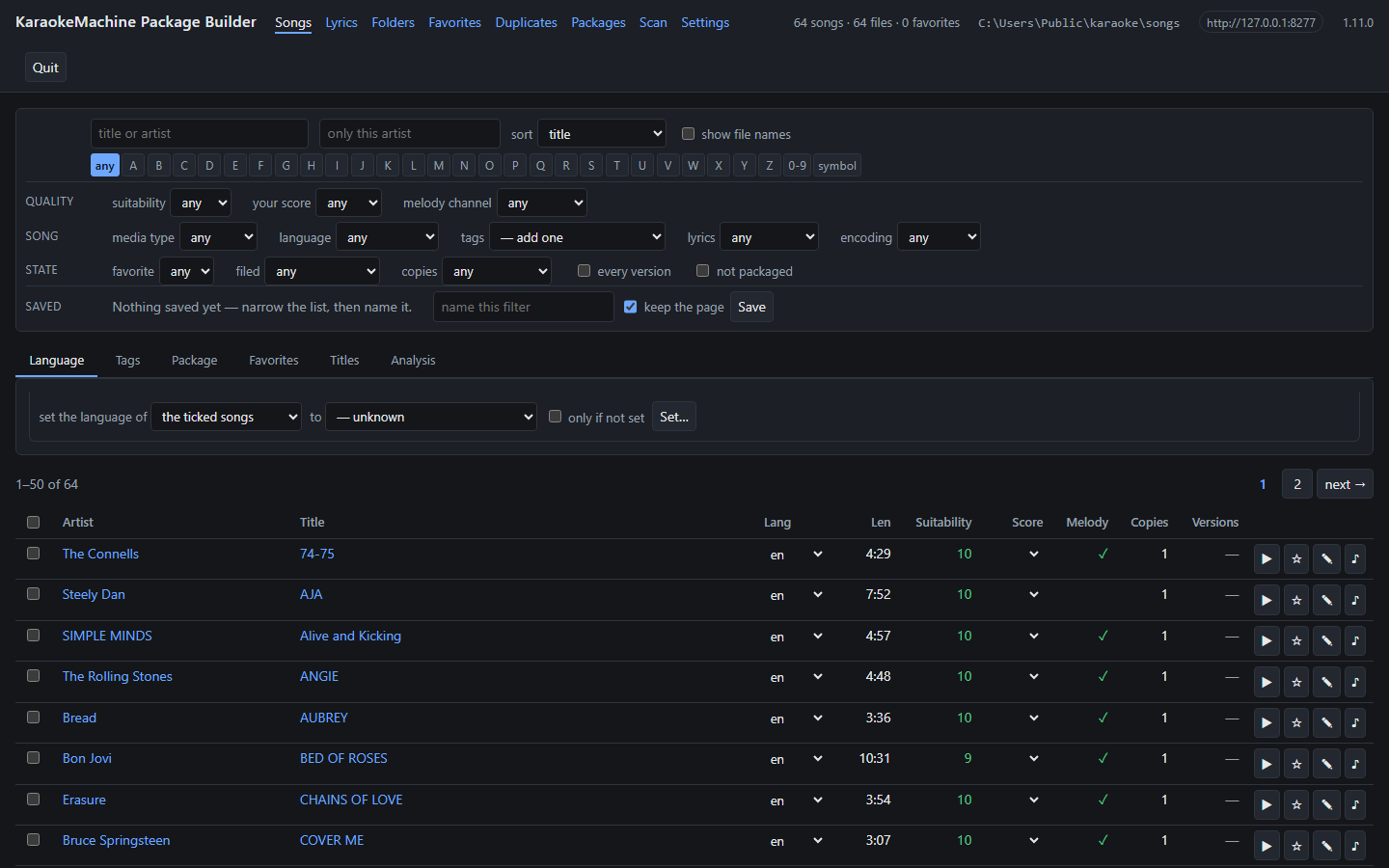
km-package-builder, for getting a folder of files into shape before it is packaged.
km-package-builder ./songs --init --scan --open   # the first time
km-package-builder ./songs                        # once it has a database
Only --init creates the database, so a wrong folder is an error and not an empty index.
Build the package
Packaging takes three steps: describe the folder, edit the description, and build it.
km-pack spec ./songs --out vol1.kmspec.yaml     # what is here, and what it is called
km-pack spec ./songs --out vol1.kmspec.yaml --min-suitability 6 --require-lyrics   # ...or be choosier
km-pack build vol1.kmspec.yaml                  # build what the description says
km-pack check vol1.kmpkg                        # validate + report suitability
build takes a description and never a folder. km-pack refuses a folder of more than 999 songs.
Split the folder, or narrow it with the flags.
Look inside one file
When a song does not behave, km-lyrics prints its parsed lyric timeline and its analysis.
km-lyrics dump ./song.kar
Take the songs a site links
km-site-pack downloads a site’s song files into a folder. It then builds a package from the ones
that have words.
km-site-pack <address> ./songs --dry-run        # list what a run would download
km-site-pack <address> ./songs                  # download, then build the package beside ./songs
It honours the site’s robots.txt and waits between requests. Whether you may keep the files is
yours to judge.
Putting words on a MIDI file
A MIDI file with no words, or with words timed badly, gets them from the lyric sync editor. You
give it the song and the words as text, and you press Space as each word is sung. It writes a new
.kar file and never changes the MIDI file.
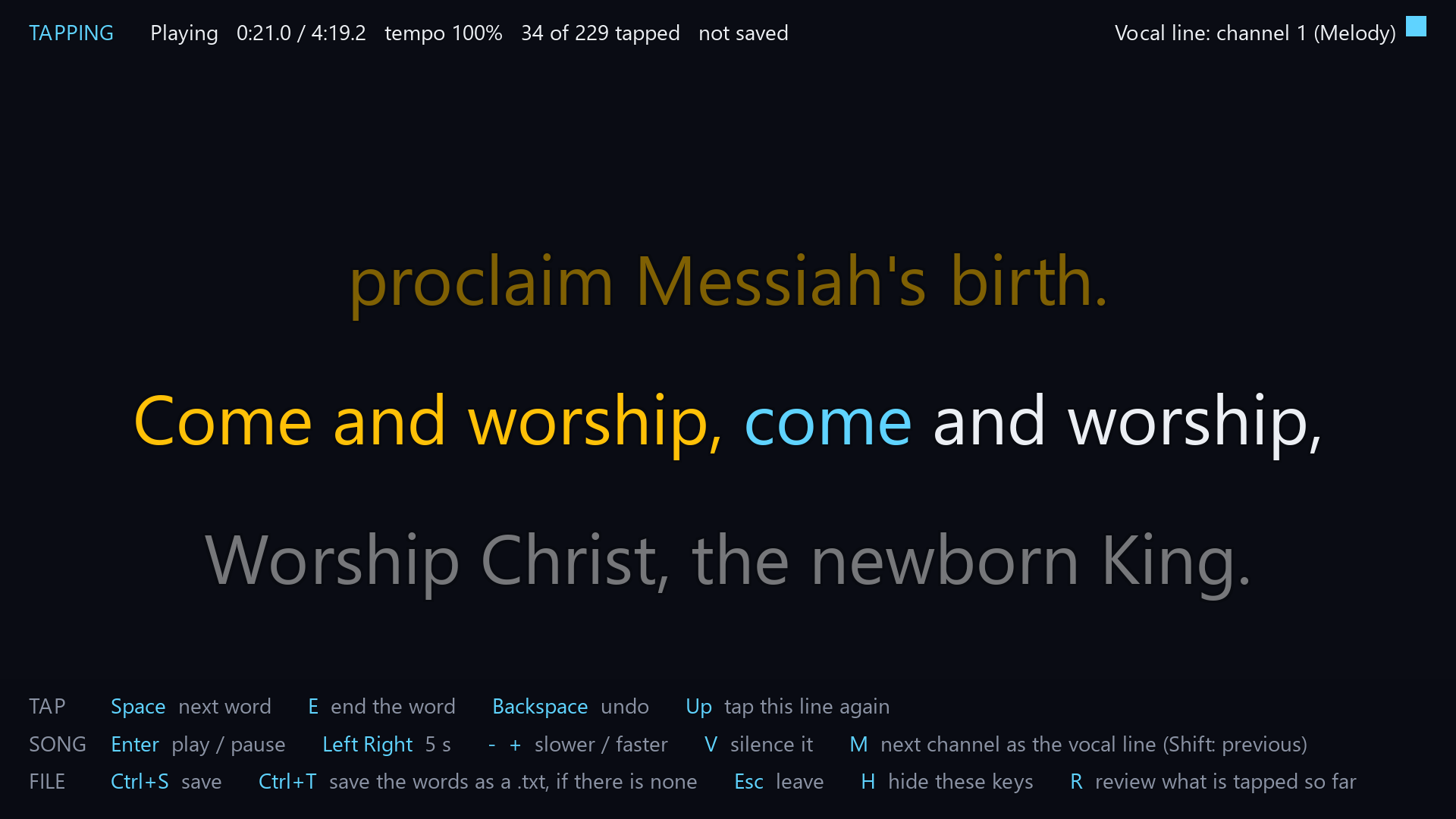
The lyric sync editor. Each press of Space gives the next word its time.
Start the editor from a shell
karaokemachine --sync song.mid --sync-words words.txt     # writes song.kar beside the song
karaokemachine --sync song.kar                            # correct the words a file already has
karaokemachine --sync song.kar --sync-words words.txt --sync-continue   # go on from a part-tapped file
A file that has words opens in review when you give no words file, so you can fix its timing.
A file saved before every word was tapped goes on from the next word with --sync-continue. The
result of either is written to song-synced.kar, and --sync-out names another file.
Start the editor from a page
KM Song Sync, km-song-sync, starts the editor from a page. On the first tab, browse to the
MIDI file and press Select. The second tab opens: paste the words into the box, and press Start.
The first tab lists folders and MIDI files only. The buttons under the path box open your home
folder, and on macOS your iCloud Drive and Dropbox folders.
With the box unticked it uses the text file beside the song, which has the song’s name and
.txt, in any encoding. A song that has words already opens with them. A synced copy that is already there is replaced only
when you tick the box that says so.
The page shows the title, the artist and the language of the selected song. Change any of them, and the synced file holds what you entered. An empty field keeps what the song states. A song with no title gets its file name.
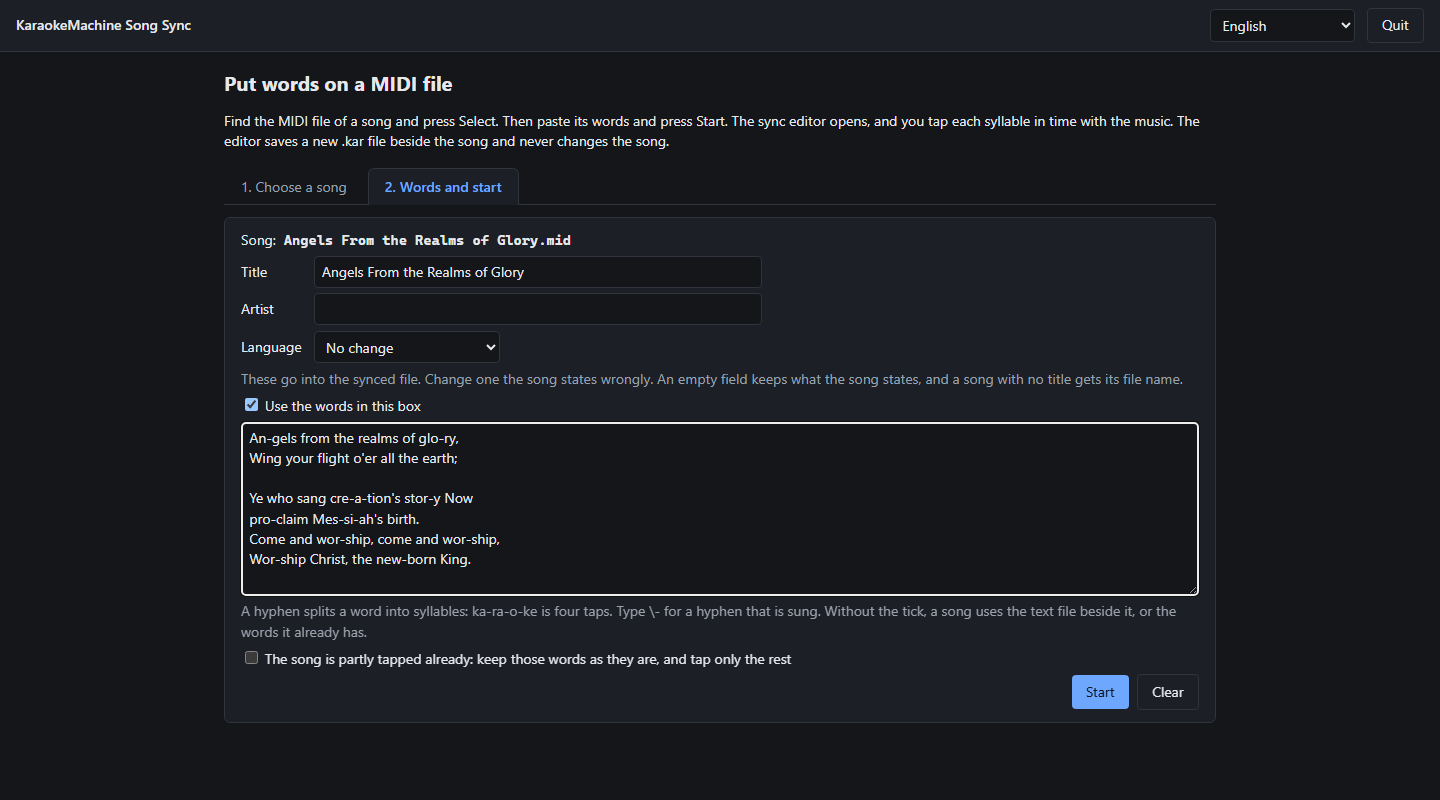
KM Song Sync, with a song selected and its words pasted.
Write the words file
The words file is plain text. One line is one line on screen, and an empty line starts a new
page. A hyphen splits a word into syllables, so ka-ra-o-ke is tapped four times. Type \- for a
hyphen that belongs to the word.
Tap the words
Tapping gives each word its time. Enter plays and pauses, Space marks the next word, and
Backspace takes back the last one. E ends a word before a pause, so its highlight stops there.
Review the timing
Review plays the song with your words as the machine will draw them. R opens it. A banner says
so when the last word is tapped, and R also opens it earlier.
The arrow keys select a word and move it by 10 ms.
C selects the word being sung. Ctrl+Shift+Backspace clears every tap, so you tap from the
first word again. The same keys give the taps back until you tap a word.
Find the vocal line
The vocal line is the channel that plays the sung tune. The editor finds it from your taps,
and M changes it. V silences it, so you hear whether the tune is gone. N moves your words
onto its notes. The top right corner says the editor is detecting it while a word is untapped. It
says none was found only when every word is tapped.
A bar under the status line counts in to a line of the words. It fills while the vocal line is silent, and it is full as the vocal line comes in. It is the bar the machine draws before a line after a long pause.
Save the result
The key list at the foot of the window names every key, and H hides it. Ctrl+S saves. Ctrl+T writes
the words as a .txt beside the song, when no such file is there. The editor
uses the machine’s instrument bank, audio device and language, and writes no settings.
Privacy
No program sends telemetry, crash reports or usage data, and none checks for updates. A crash report stays in a file on the computer. A program contacts a host on the internet only for what the list below names.
- The Windows setup program downloads Microsoft’s WebView2 installer when you choose a tool that needs WebView2 and the computer does not have it.
- The machine downloads an instrument bank when you ask it to. It also downloads one at its first start when you left that checkbox ticked in the setup program.
- KM Admin downloads an instrument bank when you click to fetch one.
- KM Admin and
km-wallpaper-packsearch Openverse, Pixabay or Pexels when you ask for pictures. The search terms go to that service, and with them the API key you gave it, if any. The pictures then download from the addresses the service returns.
The machine writes singers’ names to a file only where you ask it to keep the evening. With
that setting on, the names and the songs each singer asked for are in evening.json and
evening.previous.json, in the machine’s data folder. A new evening removes both files, and so
does turning the setting off. Neither file leaves the computer.
A download sends a plain request and nothing that identifies you. On your own network, the machine answers the HTTP API and announces itself over mDNS, and the remotes and tools reach it there. A YouTube link in a remote or the package builder opens your browser only when you click it.