The keyboard
A keyboard plugged into the machine does everything a singer needs: pick a song by number, and control the song that plays. A phone does the same from the sofa. See The remotes.
Mid-song, a key press shows a strip of buttons along the bottom. Each button names its function key. The function keys work without the strip, and each has a letter key that does the same. A television or a phone shows the same buttons without the key hints.
Choosing a song
Type the song’s number and press Enter. The number comes from the remote’s search or from
the song book.
| Key | What it does |
|---|---|
0–9 | Type a song number, on the number row or the keypad |
Enter | Queue the song number |
Backspace | Correct the song number |
Delete | Clear the song number |
↑ ↓ ← → | Move around the on-screen number pad, where one is drawn |
 |
 |
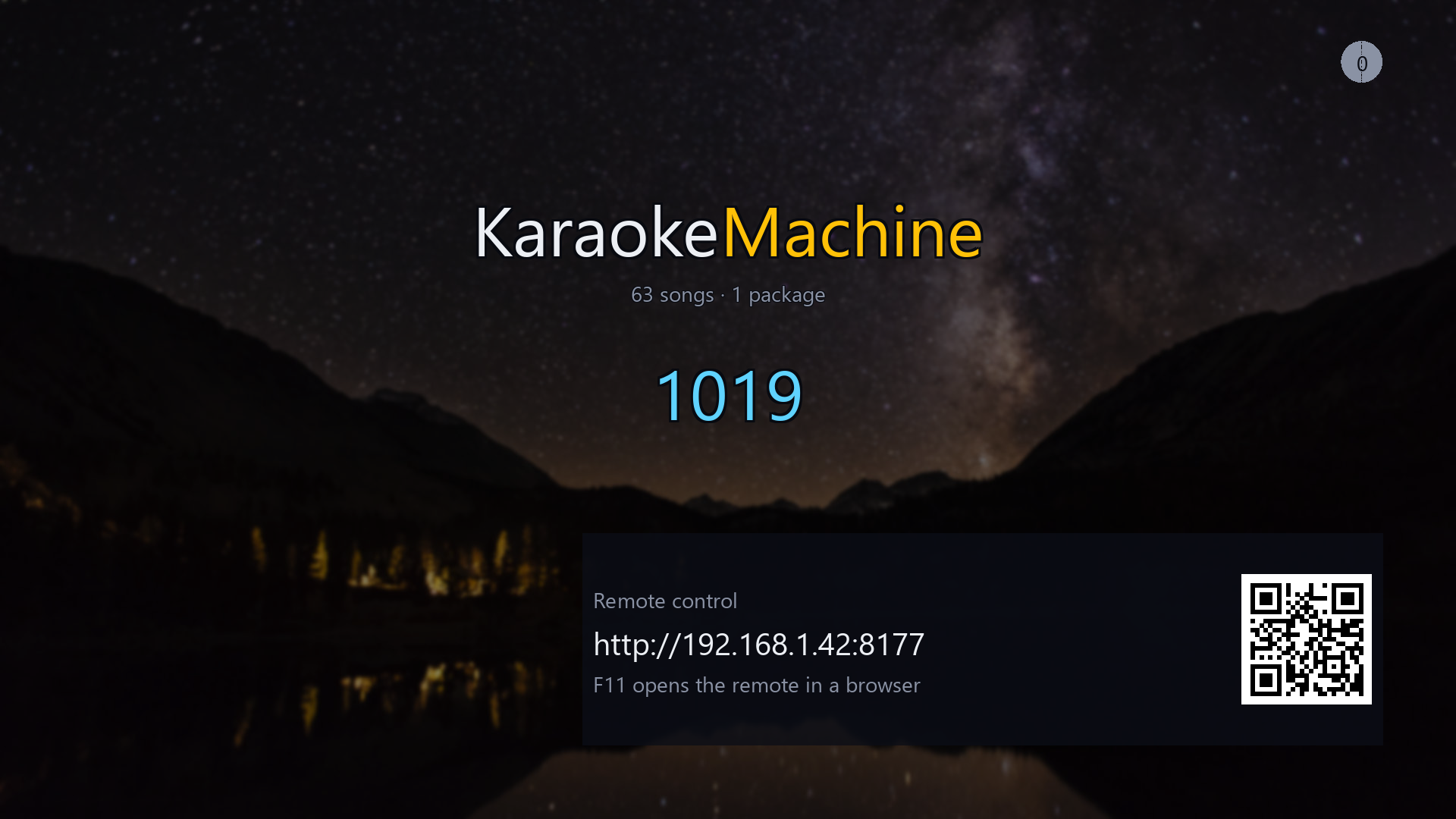
A song number, part typed. Enter queues it, and I shows
the address and QR code. |
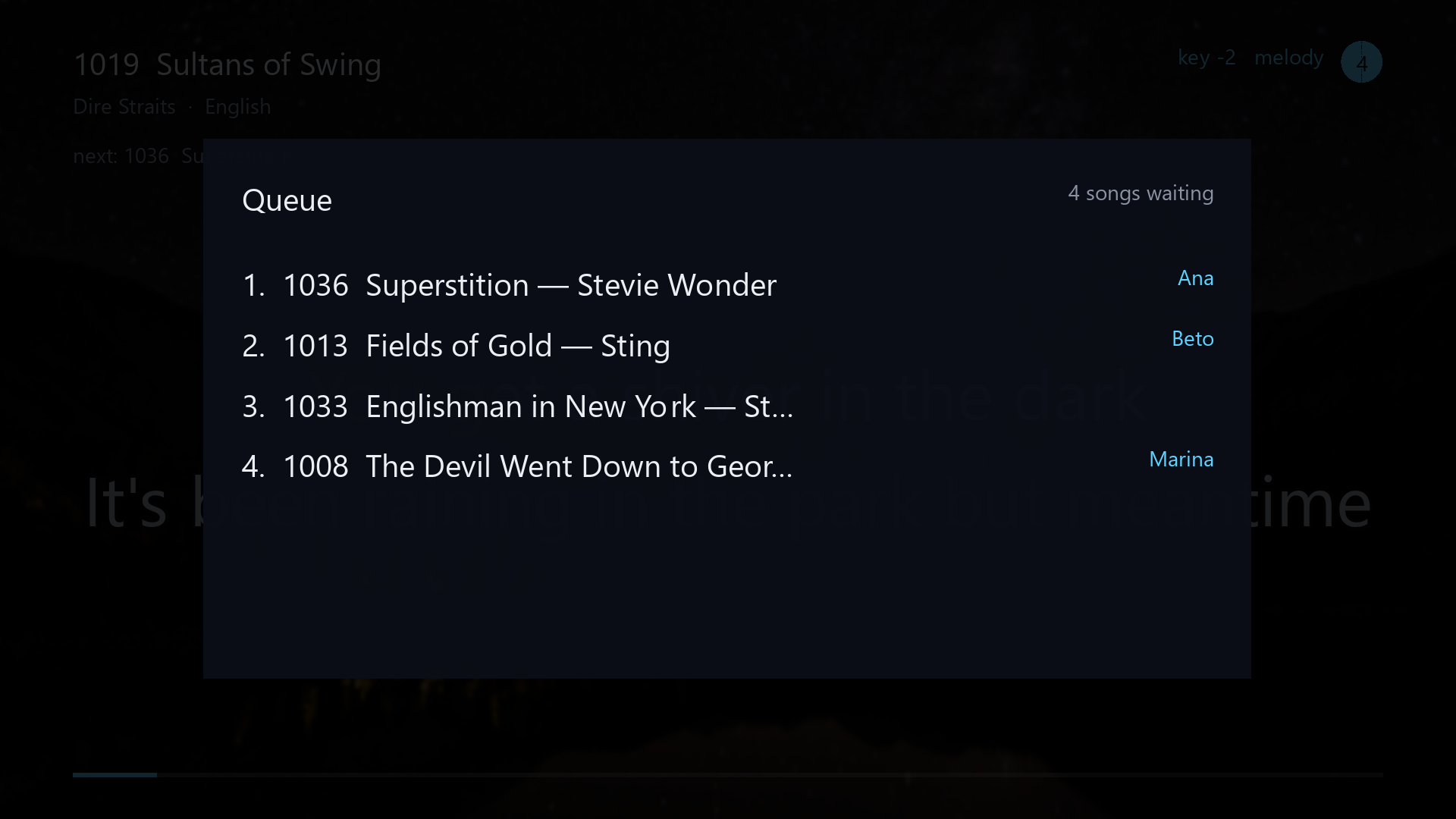
The queue, which F6 or Q shows over the song. |
During a song
| Key | Letter key | What it does |
|---|---|---|
F1 | Space | Pause and resume |
F2 | , | Go back ten seconds |
F3 | . | Go forward ten seconds |
F4 | N | Skip to the next song |
F5 | R | Start the song again |
F6 | Q | Show the queue |
F7 | - | Lower the key |
F8 | + | Raise the key |
F9 | M | Turn the guide melody on and off, for a song that has one |
K | Put the song back in its own key |
The screen and the window
| Key | What it does |
|---|---|
W | Show the next wallpaper |
I | Show the address and QR code |
F | Fill the screen |
T | Keep the window in front of everything else |
C | Show or hide the mouse pointer |
Esc | Leave full screen. In a window, stop the machine |
Back, on a TV remote or a phone | Go back one step, and leave the machine from the first screen |
F12 | Show how the picture is doing |
Ctrl+F12 | Stop the strip of buttons timing out |
T is for a machine that shares a screen with other windows. The machine remembers the setting.
Some Linux desktops do not let an application place itself, and there the key does nothing.
C shows or hides the mouse pointer. A window shows it and full screen hides it to begin with,
and C changes only the one you are in. The pointer comes back while the Menu is up. The machine
remembers both.
F12 shows frames a second, the time each frame took, and any sound or video that ran short. It
writes nothing to the log. The machine forgets F12 and Ctrl+F12 when it closes.
The machine itself
| Key | What it does |
|---|---|
D | Turn demo mode on and off |
F10 | Open the packages folder |
Ctrl+F10 | Read the packages folder again |
F11, or Ctrl+F11 on a Mac | Open the remote in this computer’s browser |
Ctrl+Q | Stop the machine |
Ctrl+1–Ctrl+9 | Change to another SoundFont bank that debug.soundfonts names, to compare them |
A machine that kept its evening through a restart waits for one of two keys. The screen says so, and it plays nothing until then.
| Key | Letter key | What it does |
|---|---|---|
F1 | Space | Go on with the evening, from the first song in the queue |
F4, twice | N, twice | Start a new evening, with an empty queue and no singers |
The second press must follow within eight seconds. Any other key keeps the evening. Running a public night has the setting.
D starts a song at once and then plays songs by itself. If a song plays or waits in the
queue, demo mode takes over when the queue is empty. Turning it off lets the current song finish. It
lasts until the machine closes, and the /admin/ page makes it permanent. With it on, N on a quiet
machine starts the next song.
Ctrl+F10 lets a package you just copied in play without a restart.
F11 opens the page a phone gets. macOS keeps F11 for itself, and the panel names the key
that works on this computer.
Ctrl+Q closes the application. On the Linux appliance it switches the box off, as its power
button does.