The remotes
A phone is the machine’s remote. A singer searches the catalog on it, queues a song, and sees what plays. The machine has two remotes: a page it serves itself, and a separate program that works with the machine switched off.
The remote the machine serves
The machine serves a remote at its own address, and any phone on the network opens it. Nobody installs an app.
To open it, point a phone’s camera at the QR code on the idle screen. The screen also shows the
address, so nobody types an IP address. Mid-song, I shows the address and the code. F11 opens the
same page in the browser of the computer the machine runs on. See The keyboard. On
Windows and macOS, move the mouse over the machine’s window and press Menu, then
Choose songs, for the same page.
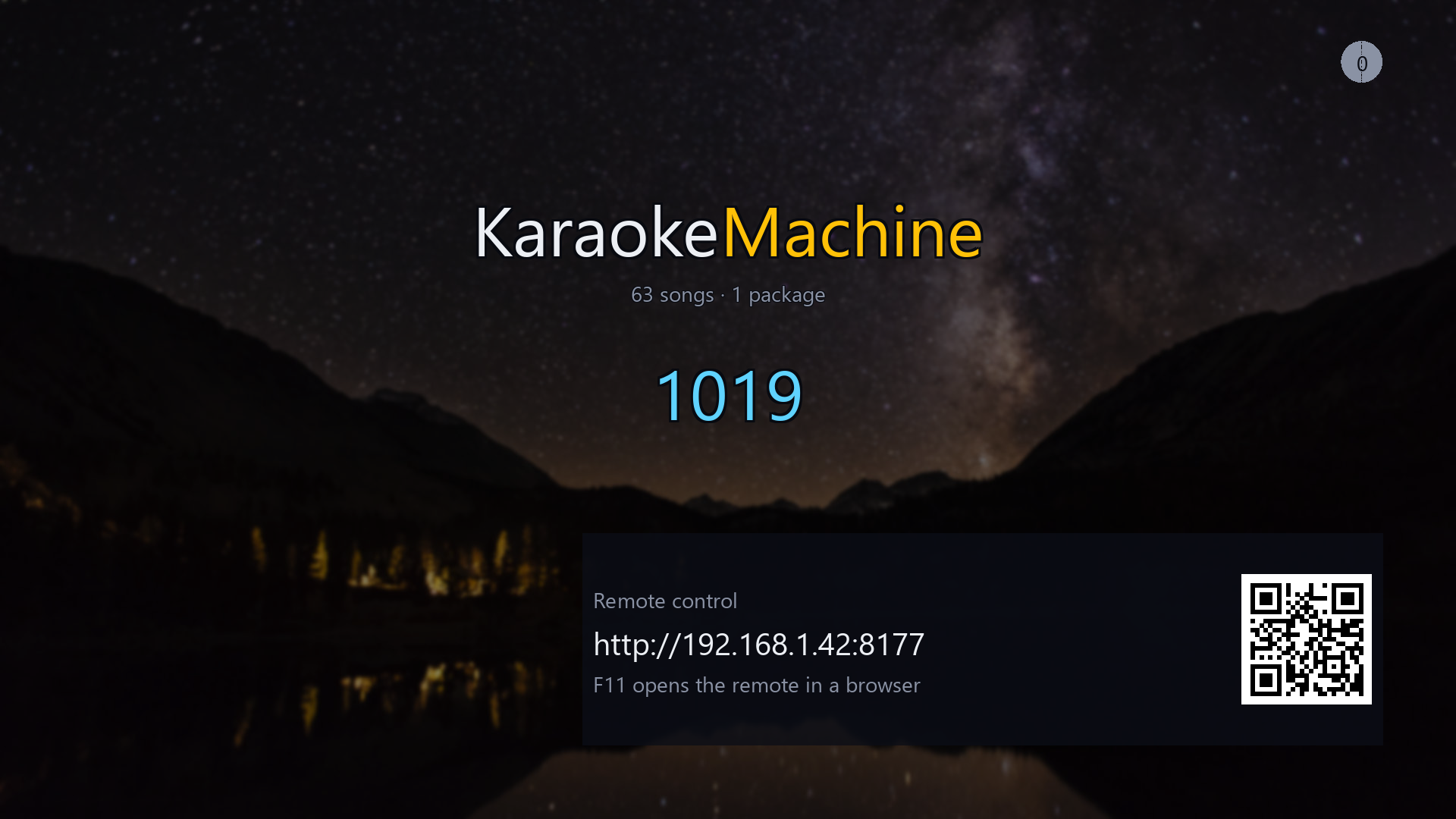
The idle screen. Point a phone at the code, and the remote opens.
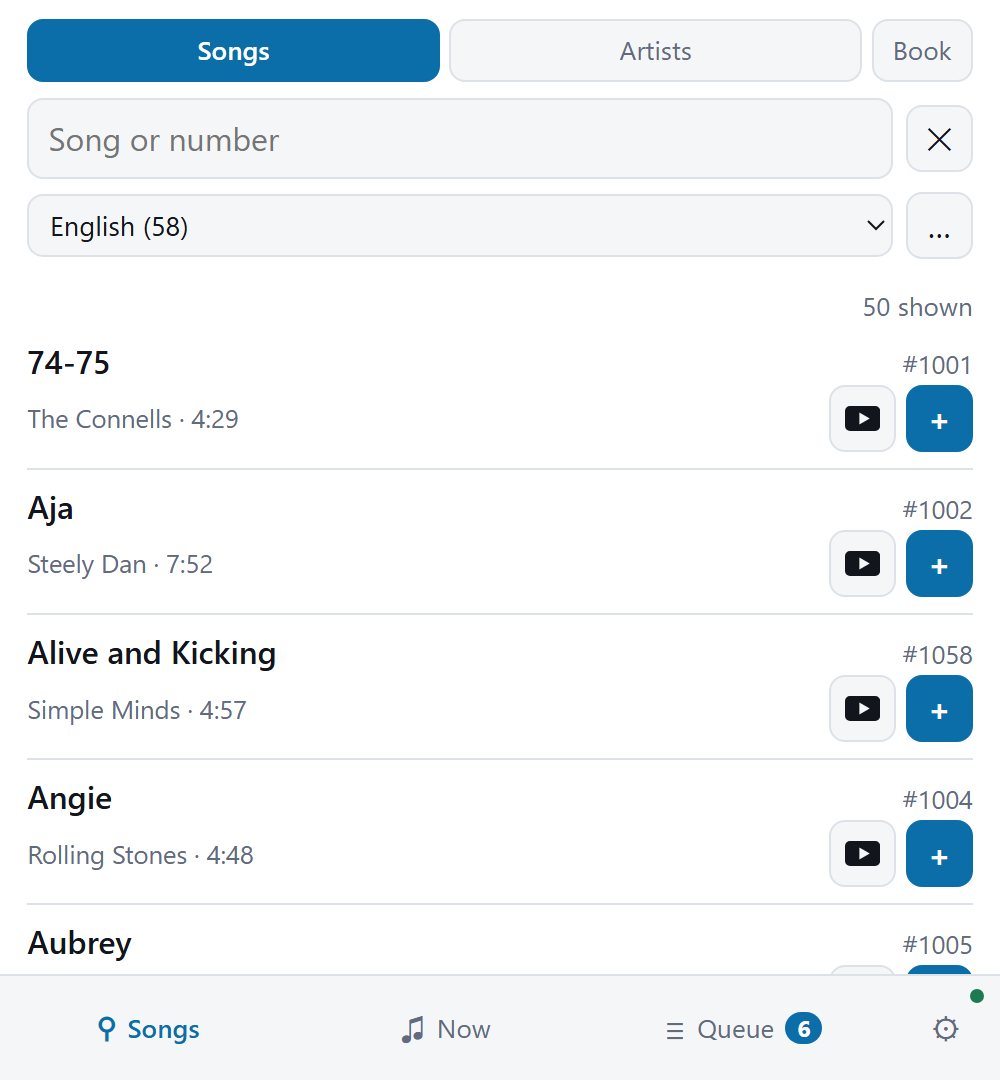
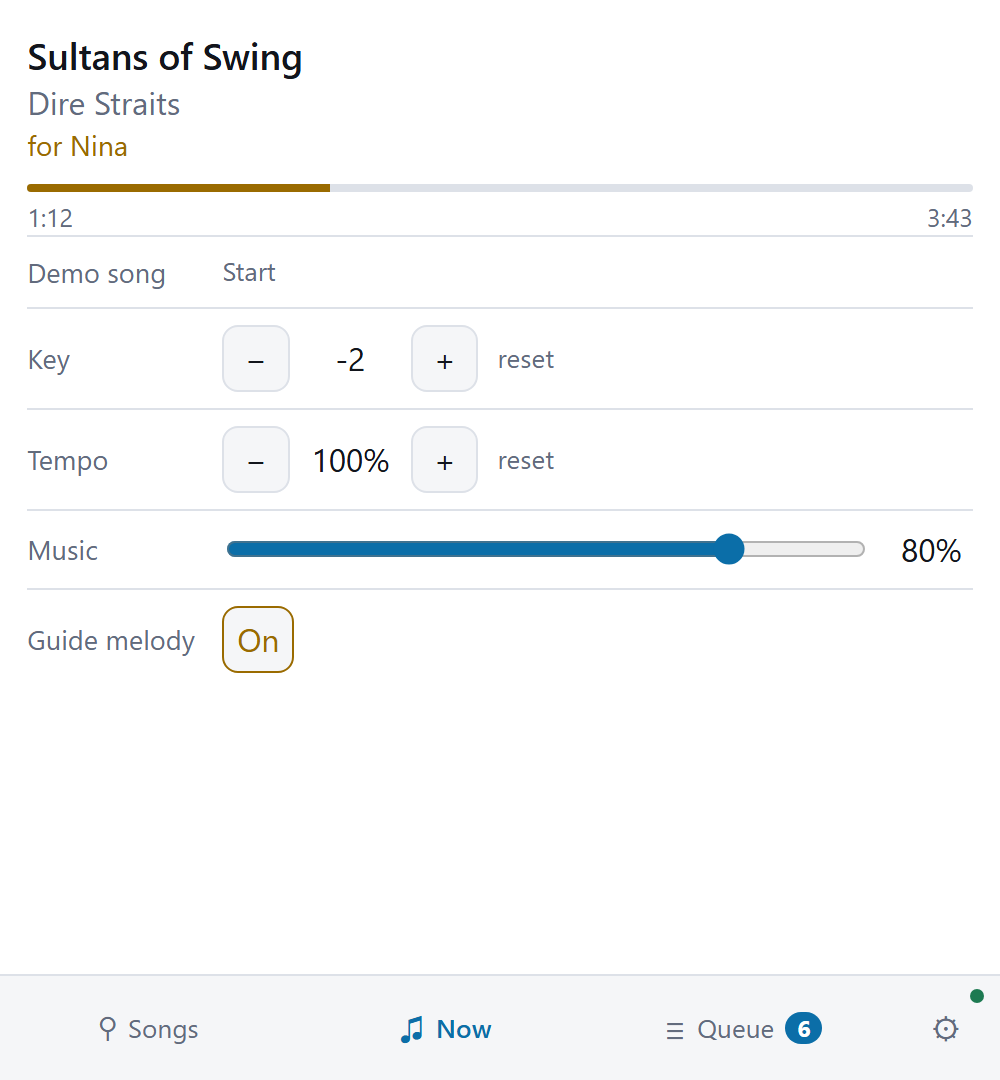
The remote has a page for each thing a singer does: find a song, follow the song that plays, and see who is next.
 |
 |
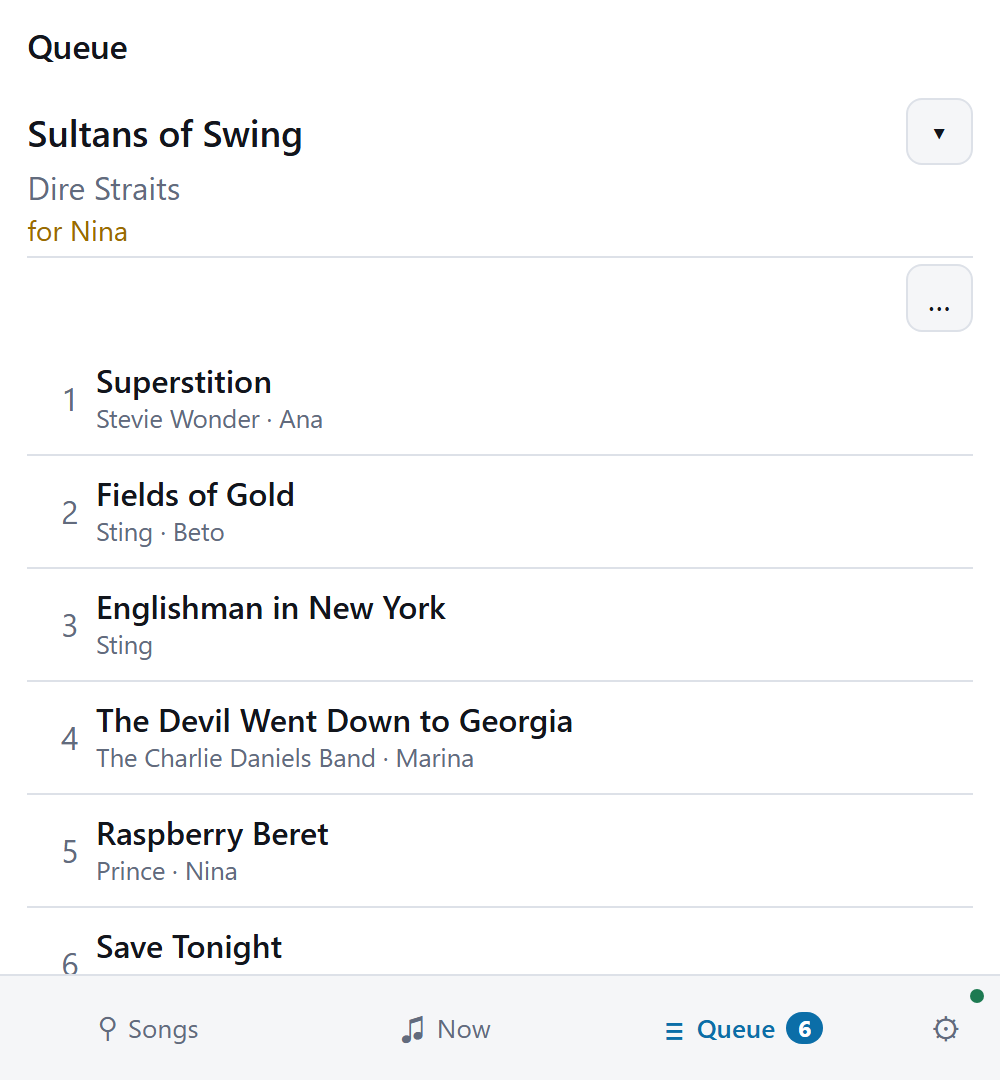 |
| Search and ask for a song from any phone. No app to install. | The song as it plays, with its key, tempo, guide melody and music volume. | Who is up next, and about when. Each singer has a colour of their own. |
Each queued song shows about how long until it starts. The Queue tab says ~4 min or < 1 min
beside each song, and the figure counts down as the playing song runs. The
queue on the machine’s screen shows the same figure.
Tap + on as many songs as you like. Out of the box each song goes to the end of the queue. The Queue tab lists Your songs, and says of each whether it is waiting, in the queue, or playing now. A song leaves the list when it ends. Tap ✕ beside one to take it back.
Where the owner chooses turns, the machine keeps one song for each singer in the queue. Your next song goes in when yours starts. Below the queue, Waiting for a turn lists every singer’s waiting songs. Tap it to open the list.
Your name is optional. Type it in Singing as on the Setup tab, and the queue shows it. Once it is saved, the box folds away, and Change opens it again. Two singers cannot hold one name on the same evening. A phone that several people share adds each of them under Add another singer on this phone, and then chooses who is singing. Who is singing stands on the Setup tab and above the list on the Songs tab.
A song somebody already has brings a question. Tap + on a song that is in the queue, or that somebody sang tonight, and the row says so. Tap Ask anyway to ask for it, or ✕ to leave it.
A phone with the host’s code has a host’s tab. It is the ticked box in the tab bar. A host uses it to run a night:
| The host wants to | On the host’s tab |
|---|---|
| Add a song for a guest with no phone | Type the guest’s name, search the song, and tap + |
| Add a song found on the Songs tab | Tap 👤 on the song, choose the singer, and tap + |
| Put a waiting song into the queue early | Tap ↑ for next, or + for the end of the queue |
| Refuse a waiting song | Tap ✕ beside it |
| Move a singer to another phone | Open the singer and tap Hand to a phone. The guest then types that name on the new phone |
| Join two names that are one person | Open one singer, choose the other, and tap Merge into |
| Take out a singer who went home | Open the singer and tap Remove |
| Stop taking songs near the end | Tap Stop taking requests. Songs already waiting still play |
| Clear everything for another night | Open Start a new evening and tap Empty everything |
| Go on after a restart, where the machine kept the night | Tap Continue this evening at the top |
| Clear a night that the machine kept | Tap Start a new evening at the top |
A bar or a hall runs a night the same way. Running a public night has the settings for one.
The owner decides how much a guest’s phone can do. Out of the box, anybody in the room can ask for a song. See Setting it up from a browser.
A phone or tablet running the machine shows this remote over its own screen, on Android, iPhone and iPad. Press Menu at the top of the screen, then Choose songs. The song plays on behind it. Press Close, at the right, to return to the lyrics. On Android, Back does the same. A second app would take the screen away, and the machine pauses when that happens.
The offline remote
The offline remote is a separate program, km-remote. It keeps its own copy of a machine’s
catalog, so browsing, searching and favorites work with the machine switched off. You can choose
your songs before the machine is on.
It finds a machine on the network and remembers it. It also adds two things the served remote does not have: favorites, and an A–Z picker.
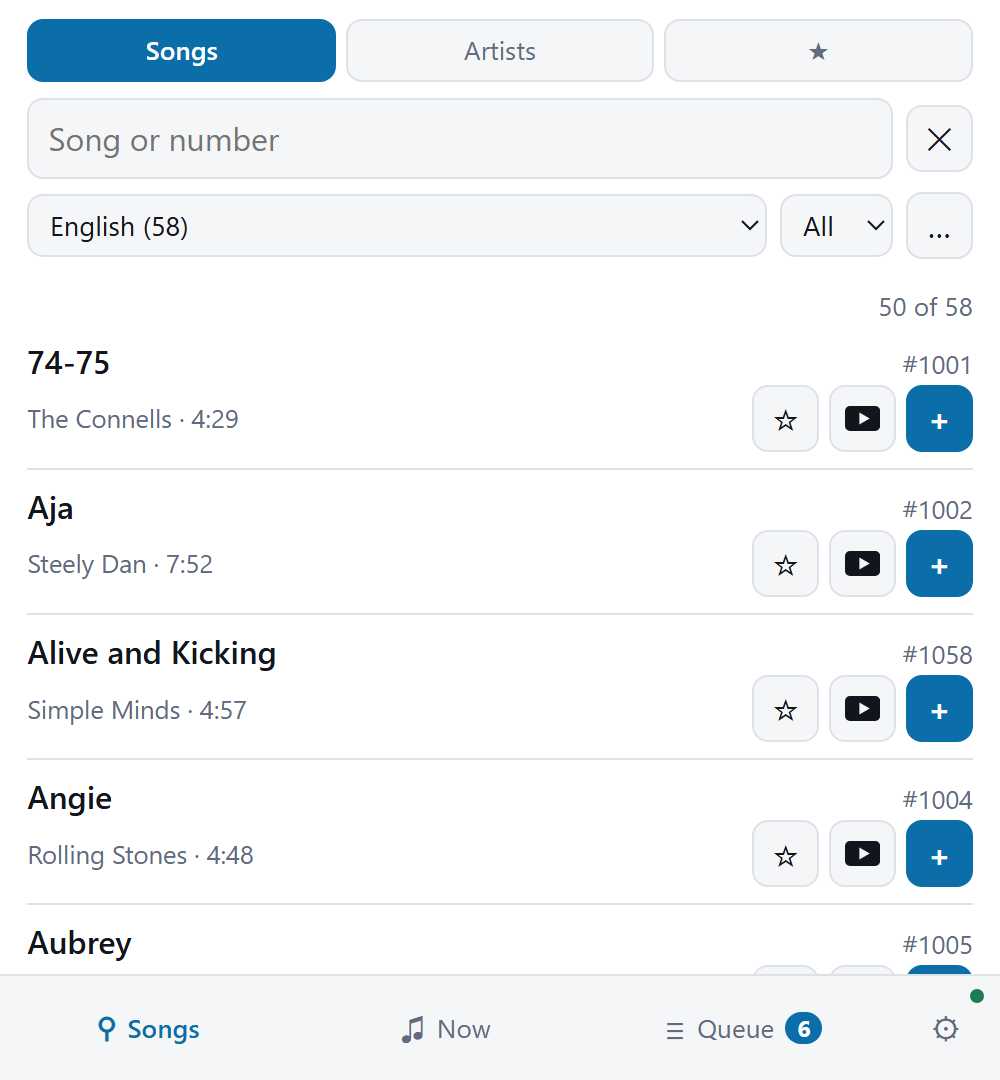
The offline remote, with its favorites mode and its A–Z picker.
It has its own download on every platform it runs on. See Installing.